Layout & Navigation
Quick Introduction to the Interface
The main interface of the software is designed to be simple and clear, and it consists of two primary areas:
- The Top Menu
- The Module Workspace located below it
The items displayed in the top menu depend on the user’s access level.
Each user can easily switch between the modules they have access to using the top menu.
As an example, the screenshot below shows the top menu of the Orders module.
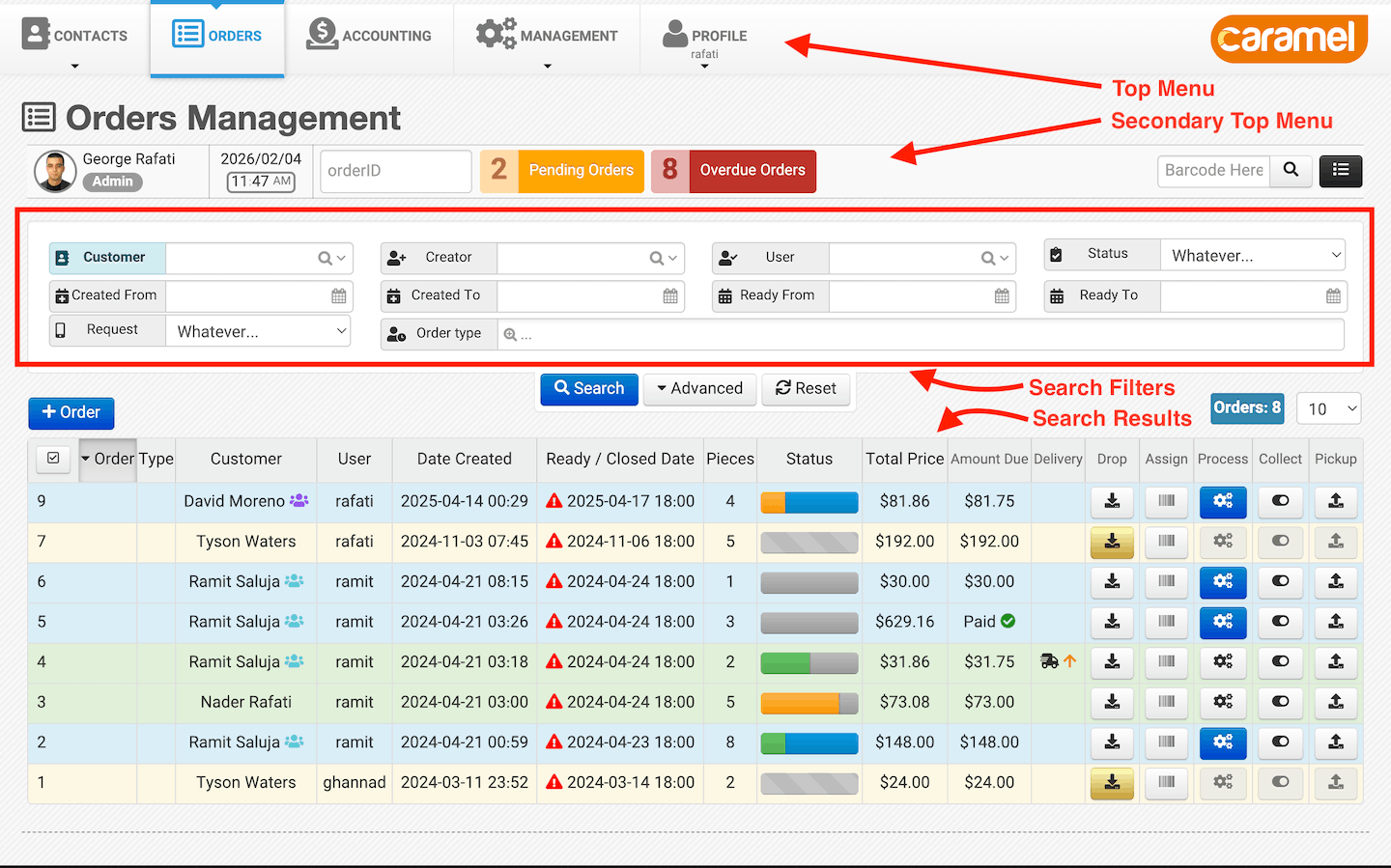
This module-specific menu is explained in detail later in its dedicated help page.
Additional Module Menus
Some modules include an additional top menu that is specific to that module.
This secondary top menu appears below the main application menu and provides tools and actions related only to the active module.
For example:
- The Accounting dashboard
- The Orders module
These modules use a second top menu to expose advanced actions, views, and options without cluttering the main navigation.
Report Pages & Filters
Report pages include a filter bar at the top of the page.
The available filters depend on the report you are viewing.
You can adjust these filters based on your needs and immediately see the updated results displayed below the filter section.
This allows you to:
- Filter large datasets efficiently
- Customize reports based on context
- Review results without leaving the current page
At the bottom of the search filters box, there is a Reset button that clears all applied filters and resets the filter form to its default state. The Advanced button expands the filter options and provides additional filtering criteria for more detailed searches.
As an example, the previous screenshot shows the filter bar used in the Orders module on the Orders Management page.
The column headers in report tables are clickable. By clicking on a column header, the table will be sorted based on that column. Clicking once sorts the data in descending order; clicking again changes the sorting to ascending order. This allows you to quickly organize and analyze the data directly within the report.
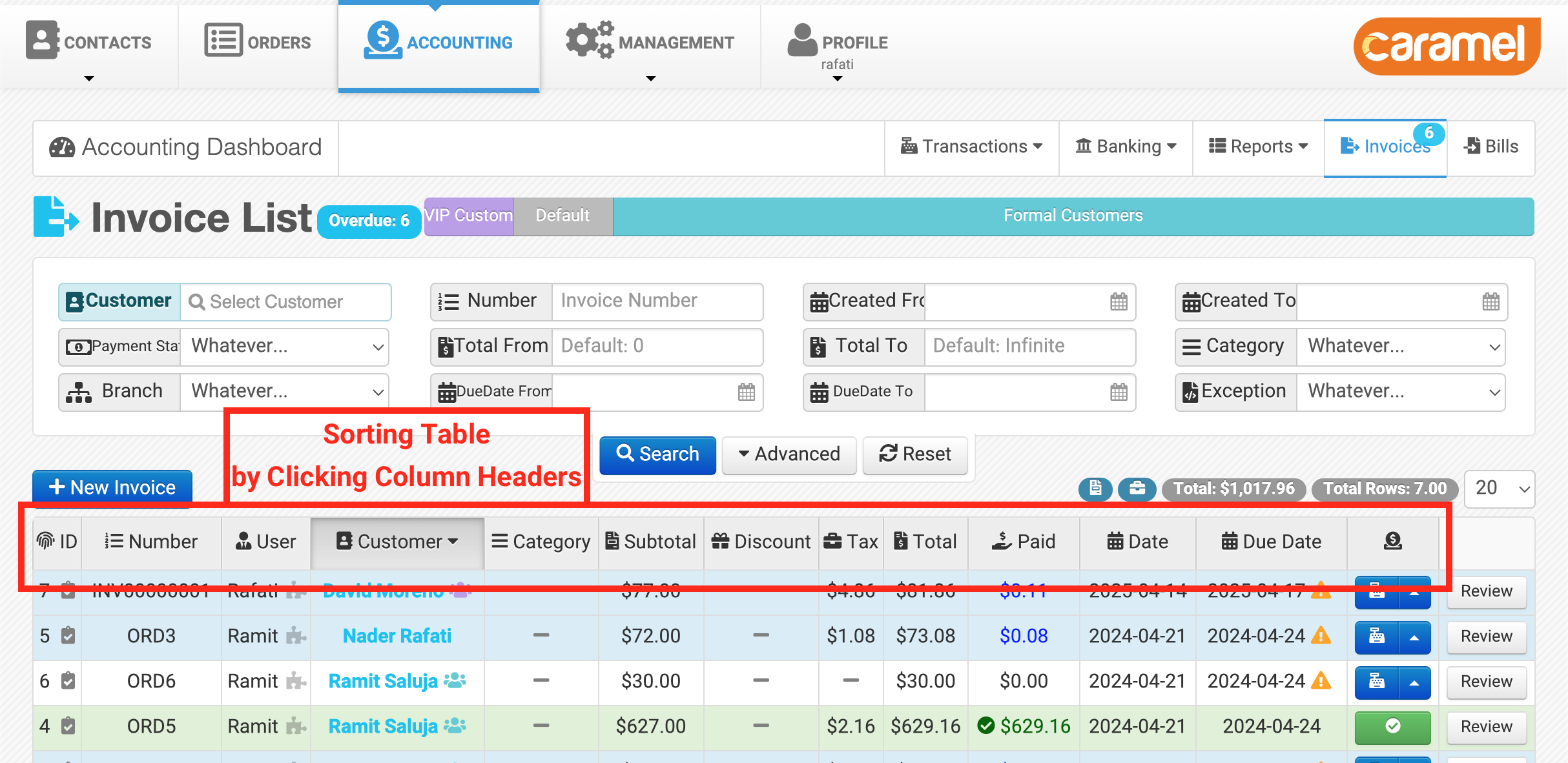
This filtering system will be explained in more detail in the related help sections.
Working Across Modules
In practice, you will often be redirected between modules using shortcuts, without needing to manually switch menus.
For example, when creating a new order, you can quickly add a new customer using a built-in shortcut.
There is no need to leave the Orders module and navigate to the Contacts module manually.
Most users work almost exclusively with the Orders module. Accounting and management modules are typically accessible only to manager-level users, based on assigned permissions.