Instructions
For a general introduction to transaction groups in Caramel, see Accounting Overview. That page explains the three broad business-facing groups of transactions:
- Customer Transactions
- Vendor Transactions
- Internal Transactions
This page focuses on the structural side of transactions: how transaction records are built, how they behave in accounting, and when to use each transaction type in practice.
Transaction Structure
In Caramel, transactions are mainly separated by two fields:
TypeMode
These same fields are also available in the filtering area of Transaction Management (List & Search), where you can narrow down records by transaction behavior.
Type
The main transaction types are:
Payment
Credit
Invoice
Bill
Stmt/Check
Transfer
Mode
The available modes are:
DepositWithdraw
Not every transaction type uses a mode. Some types are directional and use Deposit or Withdraw, while others act as accounting documents without being treated as money entering or leaving an account directly.
If you are reviewing the transaction list and want to understand why two records look similar but behave differently, check both the Type and Mode columns together.
Payment
A Payment is used when actual money is received or paid.
Its direction depends on whether the transaction is registered for a customer or a vendor.
Customer payment
When a payment is registered for a customer, it is stored as:
Type: PaymentMode: Deposit
In customer-related areas, this usually appears as Receive Payment.
This is the common choice when a customer pays you against invoices or outstanding balance.
Vendor payment
When a payment is registered for a vendor, it is stored as:
Type: PaymentMode: Withdraw
In vendor-related areas, this usually appears as Make Payment.
This is the common choice when you pay a vendor against bills or outstanding balance.
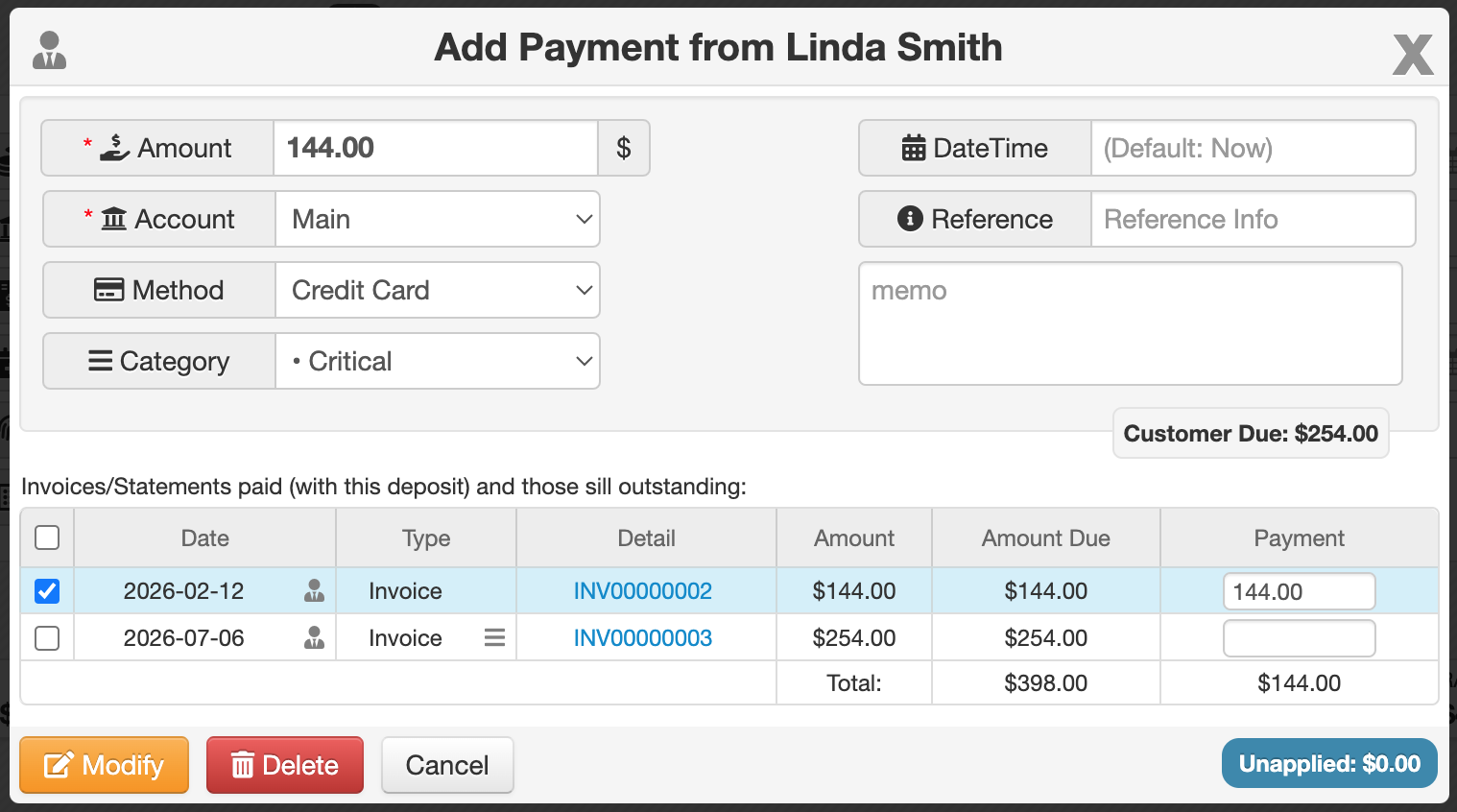
Payment form
In the payment form, these fields are usually required:
AccountAmount
Other fields are optional and can be filled when needed, such as:
CategoryMethod(Cash,Credit Card, and similar methods)DateTimeReferenceMemo
Credit
A Credit is not a real cash movement. It is a virtual financial value recorded for future settlement.
It behaves similarly to Payment in direction:
- for customers:
Deposit - for vendors:
Withdraw
The difference is that Credit does not usually require an actual payment account.
Customer credit
When credit is given to a customer, it is registered as:
Type: CreditMode: Deposit
This increases the customer’s usable balance without recording a real money receipt.
Vendor credit
When credit is registered for a vendor, it is stored as:
Type: CreditMode: Withdraw
This is used when a virtual adjustment is needed on the vendor side without direct cash movement.
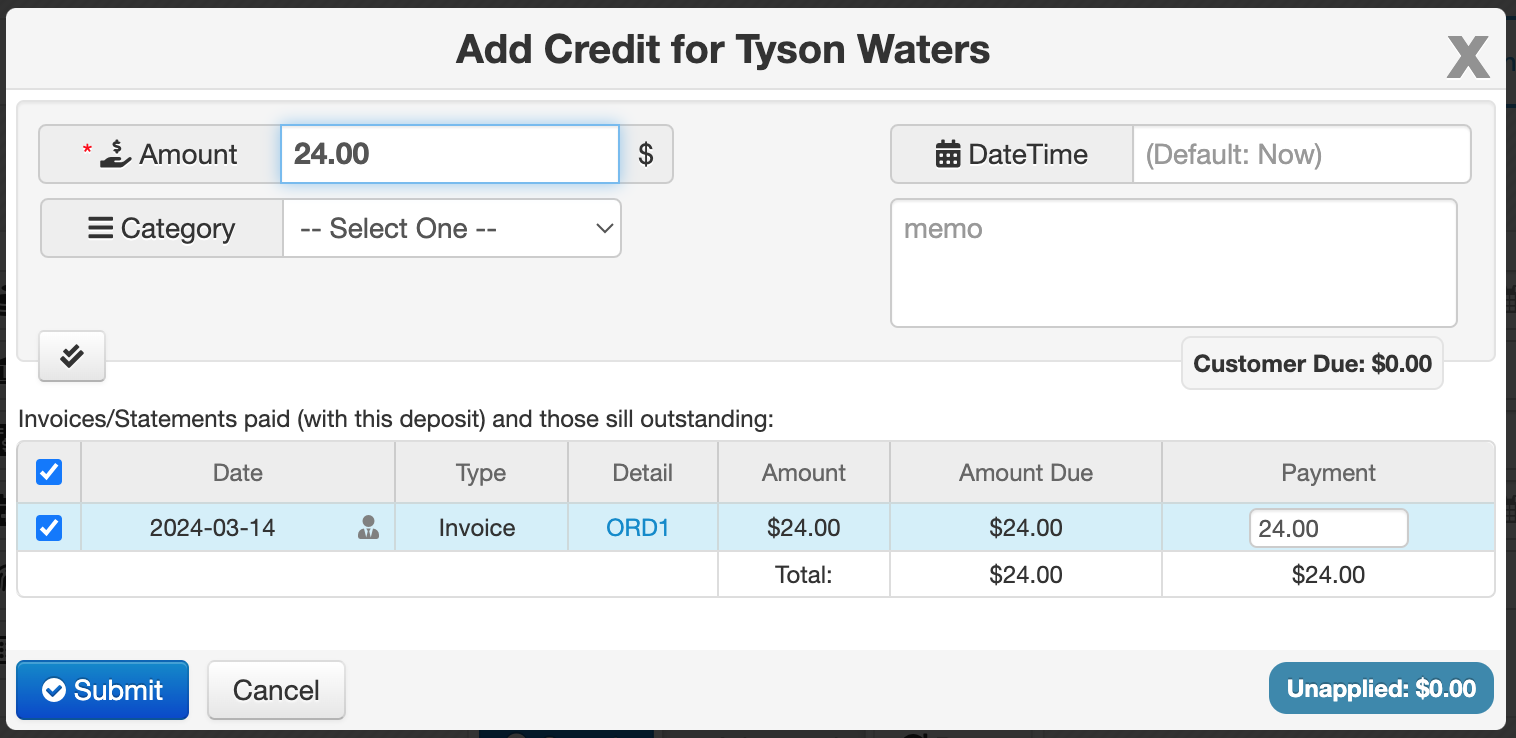
Credit form
Unlike Payment, the credit form does not include an Account field.
The main required field is:
Amount
Other optional fields may still be available depending on the context.
Allocations Table
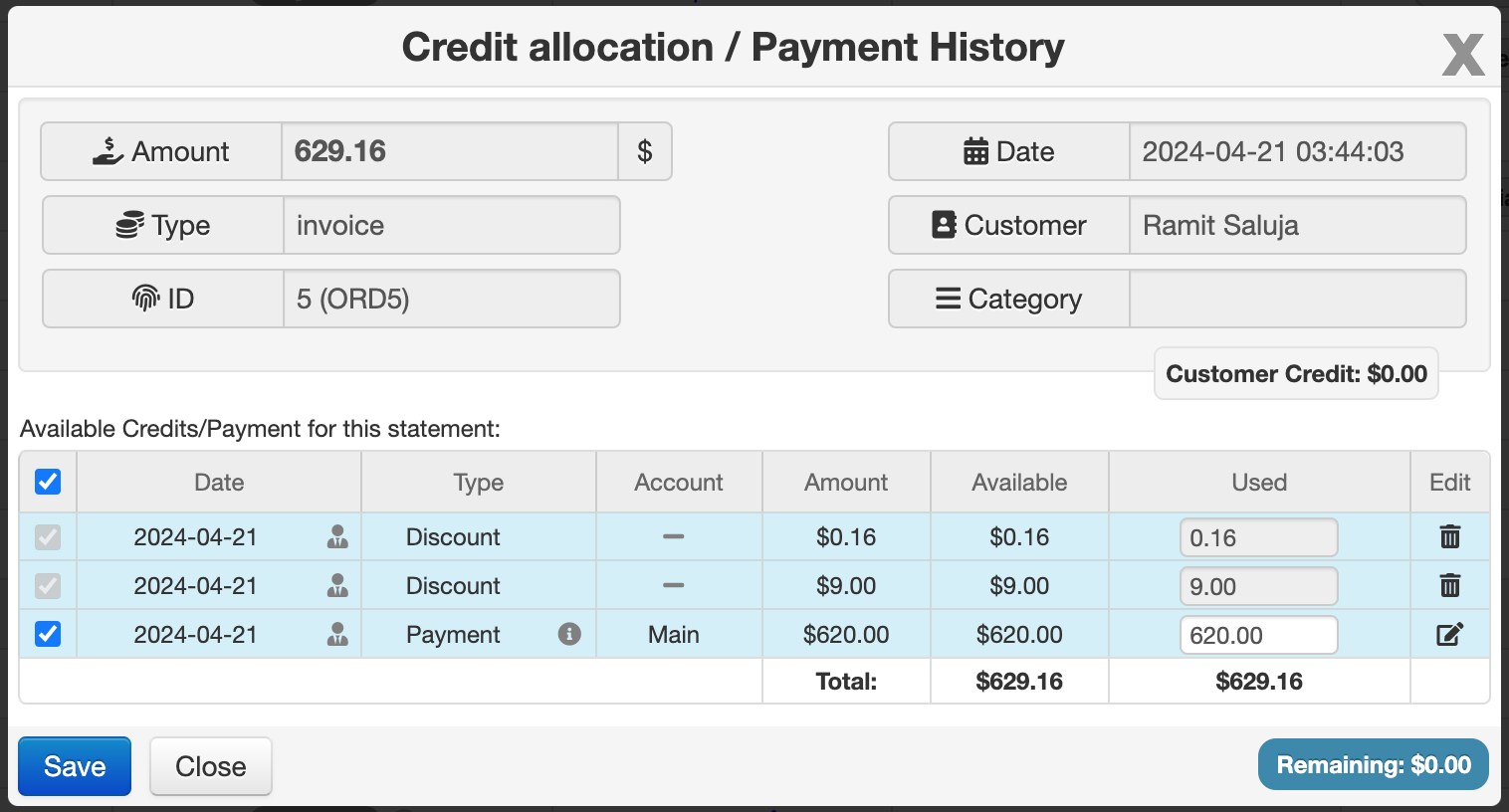
When you register a Payment or Credit, Caramel may show an allocation table below the input form.
For customers, the table typically shows:
- invoices or statements that will be paid by this deposit
- documents that are still outstanding
For vendors, the same idea applies, but the table shows bills or statements affected by the withdraw.
Automatic allocation
As soon as you enter the amount, Caramel automatically tries to distribute that amount across the listed rows.
This helps speed up routine accounting work, especially when the oldest or most obvious unpaid documents should be settled first.
Manual allocation
You can still adjust allocations manually.
You may change:
- selected rows
- allocated amounts
- checkboxes for included documents
This is useful when the payment should only be applied to specific documents.
Select-based recalculation
The button above the table is used to first choose the intended rows and then let the system recalculate the amount based on those selected records.
This button is only available in Add mode and is not shown when editing an existing transaction.
Preset
The Preset option is available to speed up payment entry.
Instead of selecting several fields one by one, you can choose one preset from a dropdown and let Caramel fill multiple fields automatically.
A preset can apply values such as:
AccountMethodCategory
For example, a preset like POS 1 may automatically set:
- Account =
Account #233 - Method =
POS - Category =
Counter
This reduces repetitive data entry and helps keep transaction registration more consistent.
In some workflows, preset selection can also be connected to card terminal or POS-related operations.
The Preset field is only available while adding a new payment. It is not shown in edit mode.
Invoice and Bill
Invoice and Bill are the main accounting documents used to create receivables and payables.
They are not direct cash transactions.
Invoice
An Invoice is used to charge a customer.
It is the standard document for recording income, such as:
- product sales
- services
- received wages or fees
- other customer-facing charges
Bill
A Bill is used to register what you owe to a vendor.
It is the standard document for recording expenses, such as:
- product purchases
- services received
- salaries paid
- other vendor-related costs
Why they are different from Payment and Credit
Invoice and Bill are the only major transaction types that do not use Deposit or Withdraw.
Instead, they work through system-level accounting balances such as:
Account ReceivableAccount Payable
These system accounts are affected virtually. Actual settlement usually happens later through Payment or Credit transactions.
Because these two document types are larger topics and often need more reporting and operational details, Caramel provides separate pages for them.
See also:
Statement / Check
Stmt/Check is used for less common financial directions.
Normally:
- customers mostly create
Depositbehavior - vendors mostly create
Withdrawbehavior
But sometimes the opposite is needed.
That is where Stmt/Check becomes important.
Typical examples include:
- refund
- recompense or damage payment
- loan-related entries
- manual financial adjustments
This type is especially useful when you need customer-side withdraw behavior or vendor-side deposit behavior.
Examples are explained later in Common Accounting Scenarios.
Transfer
A Transfer is used to move money directly between two accounts.
This is an internal money movement and does not depend on customer or vendor settlement.
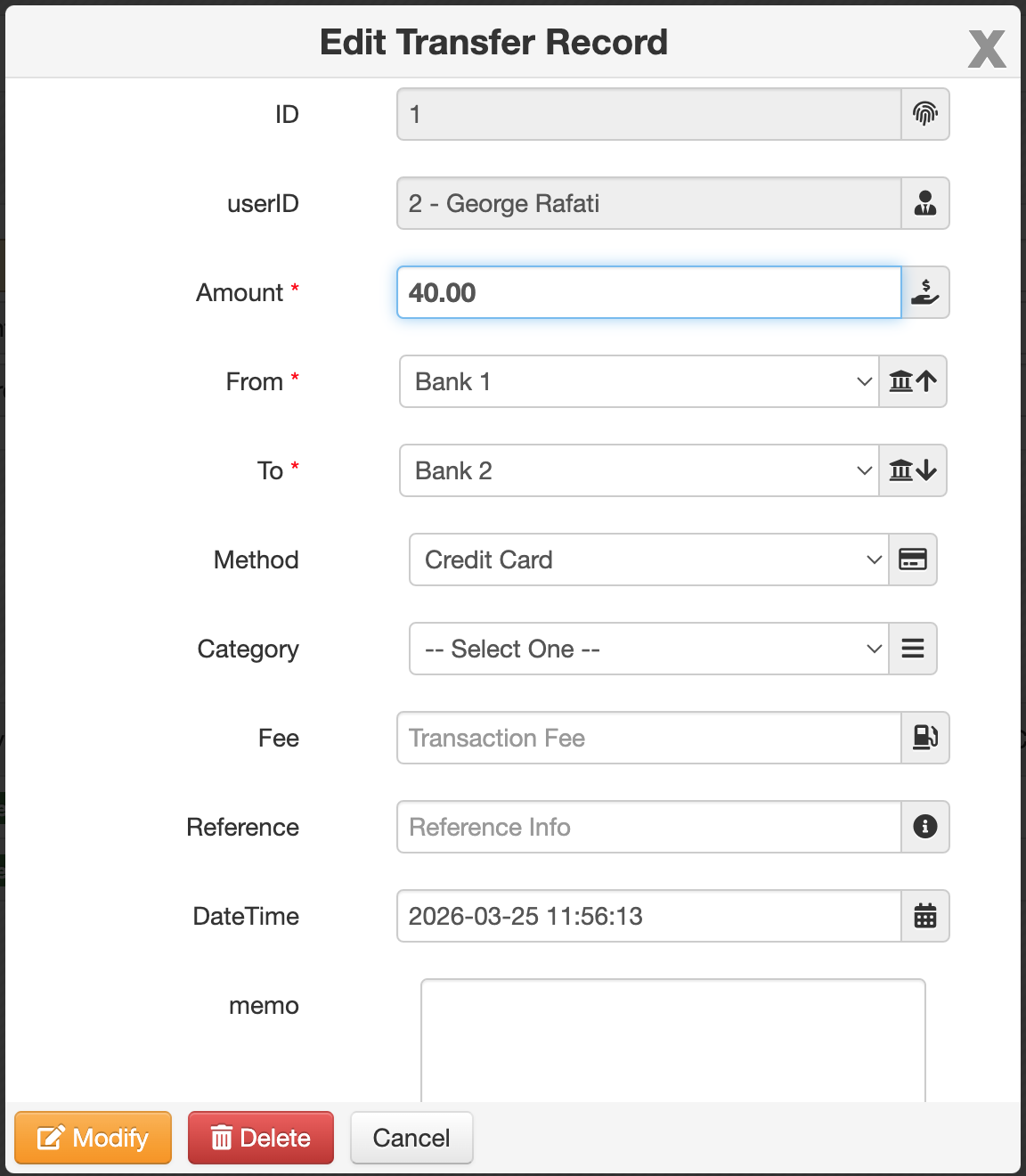
Transfer form
The main required fields are:
FromToAmount
Other fields such as Method and DateTime can be filled if needed.
How Transfer is stored
When a transfer is confirmed, Caramel creates two linked accounting entries:
- one
TransferwithMode: Withdraw - one
TransferwithMode: Deposit
These two records represent the source and destination sides of the same movement.
Although they appear as separate rows in the transaction list, they are linked to each other and behave as one transfer form.
That means:
- editing one side updates the linked side
- deleting one side also affects the linked side
Even though a transfer appears as two rows in Transaction Management (List & Search), it should be understood as one accounting action between two accounts.
Common Accounting Scenarios
How do I register payroll or salary?
To register payroll for a staff member, create a Bill for that person and make sure the person is registered or selected as a Vendor
For example, one bill row can be something like January Salary, and you can add more rows if needed for allowances, deductions, or other items.
After the bill is confirmed, that vendor becomes a creditor, meaning you owe them money. You can then use Make Payment to settle the amount fully or partially.
It is also possible to register a payment before creating the bill. In that case, the system may warn you about overpayment, and you can confirm it if that is intentional. Later, when the bill is created, that earlier payment can be matched against the vendor’s balance.
A similar workflow can also be used on the customer side when your business receives a salary-like or recurring amount from a customer.
How do I register a refund?
Refunds are usually used when a customer or vendor already has available balance, such as extra payment, unallocated payment, or credit.
For a customer refund:
- Open the customer transaction area.
- Choose Statement / Check.
- In the opened window, choose Refund Check.
- Enter the Amount.
- Select the Account that the money should leave from.
Other fields such as payment method, category, date/time, and reference are optional and can be filled if needed.
A similar process is available for vendors when a vendor is returning money to you or when you are refunding a vendor, depending on the transaction direction used in your workflow.
How do I register compensation or damage?
If the customer agrees to receive compensation as account credit for future invoices, you can simply create a Credit transaction.
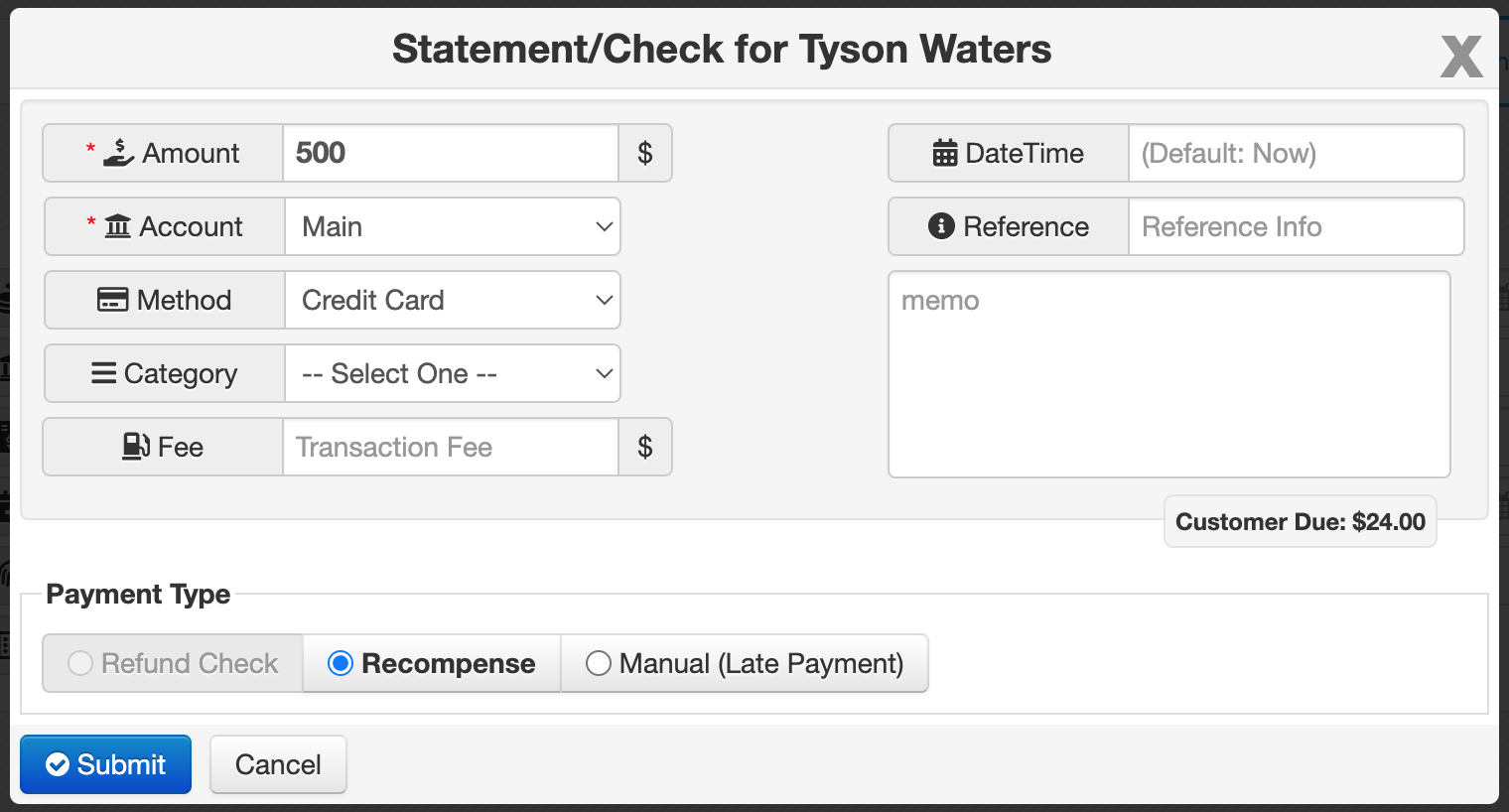
If the customer wants an actual payment instead, use Statement / Check, select the customer, and then choose Recompense in the transaction window.
After that:
- enter the desired amount
- choose the account the money should leave from
- optionally fill fields such as method, category, date/time, and reference
A similar idea can also be used for vendors when the financial direction is reversed.
Refund vs recompense
The main difference is that Refund is usually used when balance already exists and money is simply being returned.
Recompense is used more as a compensating action, and in this flow Caramel also creates a related credit record for the entered amount and assigns it to that document.
How do I register a loan?
A loan workflow can be modeled using transaction documents.
For example, if you receive a loan from a bank or institution, you can register it in two parts:
- one document for the received loan amount
- one separate document for the loan interest, if interest applies
A practical workflow is:
- Open the vendor transaction area.
- Choose Statement / Check.
- Select or create the related vendor, such as the bank or institution.
- In the window, choose Manual (Late Payment).
This records the incoming amount as a separate financial document and increases the balance of the selected account accordingly.
If the loan includes interest, create a separate Bill for the same vendor and add an item such as Loan Interest.
This keeps the principal and the interest as two separate documents. From that point on, you can use Make Payment to settle the vendor balance over time.
A similar concept can be used on the customer side if you are giving a loan to a customer.
How do I register a purchase made by someone else on our behalf?
One common example is when a staff member pays for something personally and you want to settle it later.
Simpler method
Create a new Bill for that vendor or staff member.
Later, when you are ready to settle the amount, register a payment for the bills recorded for that vendor.
You can also assign a dedicated category to these bills so they are easier to find later in search and reports.
More detailed method
If one vendor pays on your behalf to another vendor, a more precise workflow can be used.
For example:
- Create an account representing the paying person or vendor, such as a personal account for John.
- Create a Statement / Check transaction for that vendor using that account and choose Manual (Late Payment)
- This records a deposit-like document for that vendor and makes that vendor a creditor.
- Later, when making payment for another bill, select that created account as the payment source.
With this approach, the target bill is settled, while the original paying vendor remains the one you owe. You can then settle that vendor later together with other bills already registered for them, such as salary or reimbursements.