Groups
In Caramel, Contact Groups help you organize vendors and customers into meaningful categories (for example: Local Suppliers, VIP Customers, Wholesale, etc.). You usually create these groups during the initial setup, and they are reused in other modules such as accounting reports, orders, pricing, discounts, and sales/cost charts.
Note: The Customer Group and Vendor Group pages are designed the same way, and their data-entry forms are almost identical.
This page explains Vendor Groups—apply the same steps for Customer Groups.
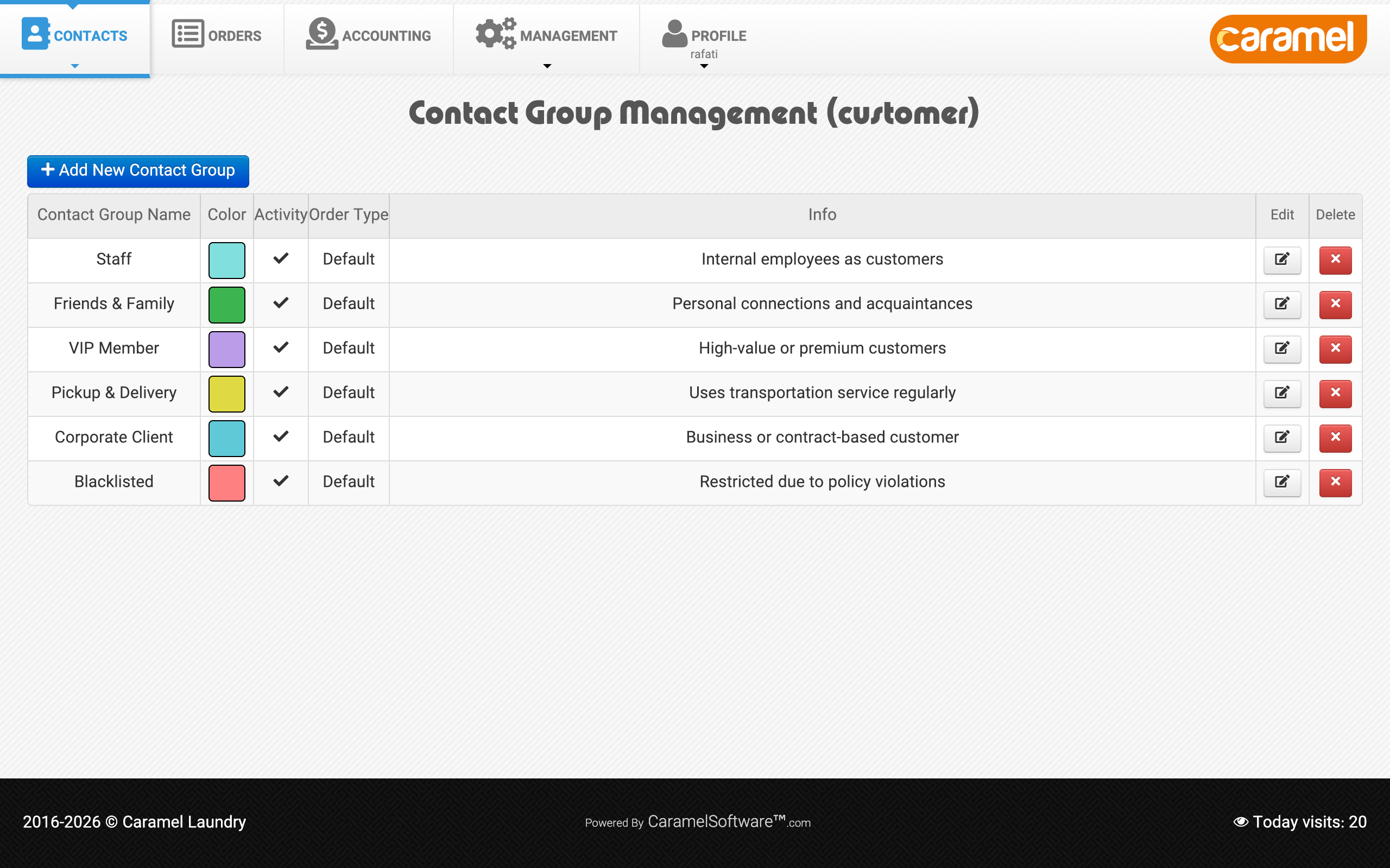
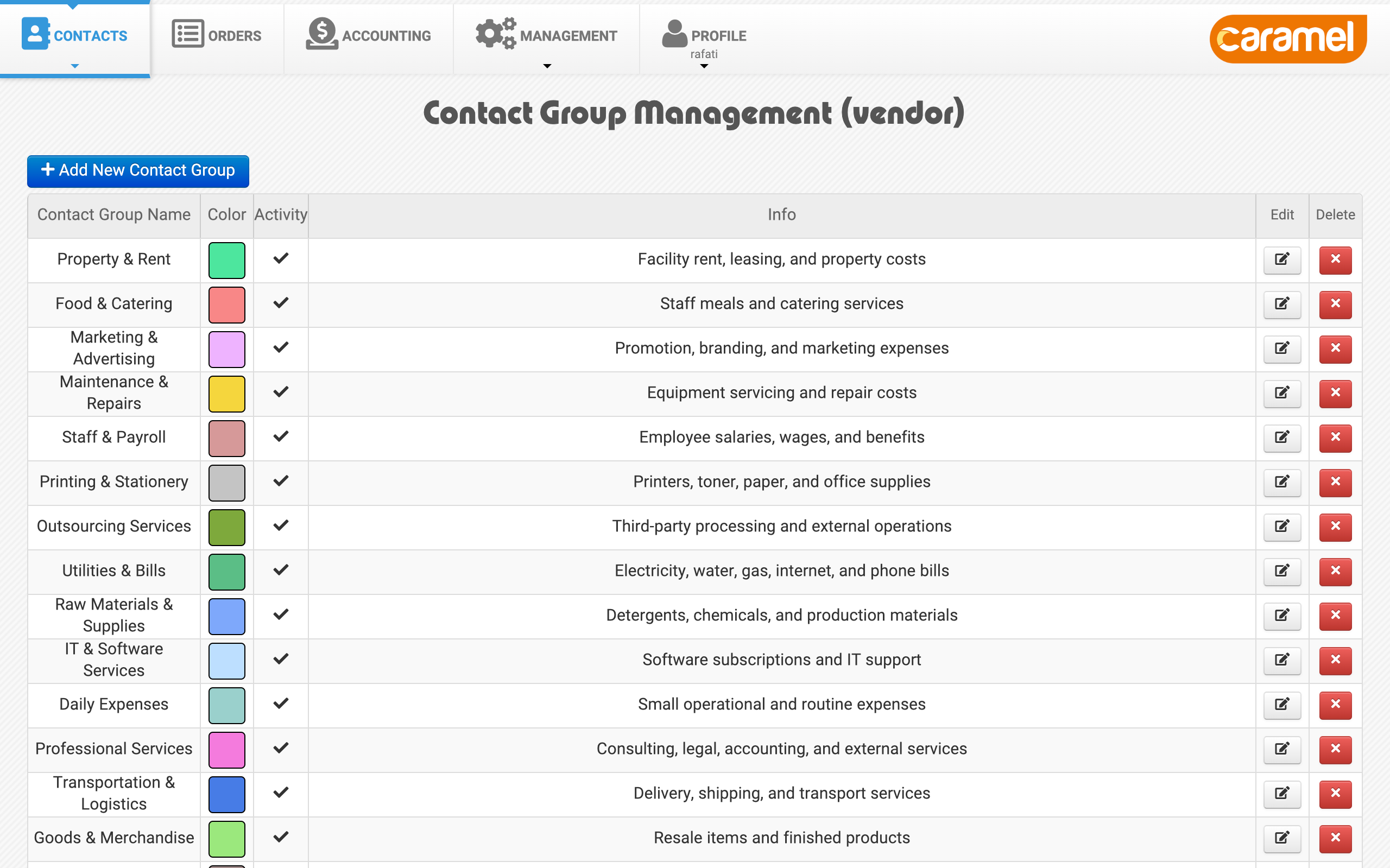
Vendor Groups list
When you open Vendor Groups, you see a table that lists all vendor groups. There are no filters on this page because the number of groups is usually limited and filtering is not necessary.
Add a new group
To create a group, click Add New Contact Group. A form opens. Only Group Name is required. The other fields are optional:
- Group Name: The group name shown across Caramel. (Required)
- Group Order: Controls the display order of groups. This is a numeric field; smaller numbers appear higher in the list.
- Default Order Type:
This option currently exists for Customer Groups and does not apply to Vendor Groups.
It sets the default order type for the Orders module (for example, Express). Order types are usually configured by the support team during the initial setup. - Color: Select a color for the group.
- Activity: Choose Enabled or Disabled to define whether the group is active in Caramel.
- Info: Optional notes for this group.
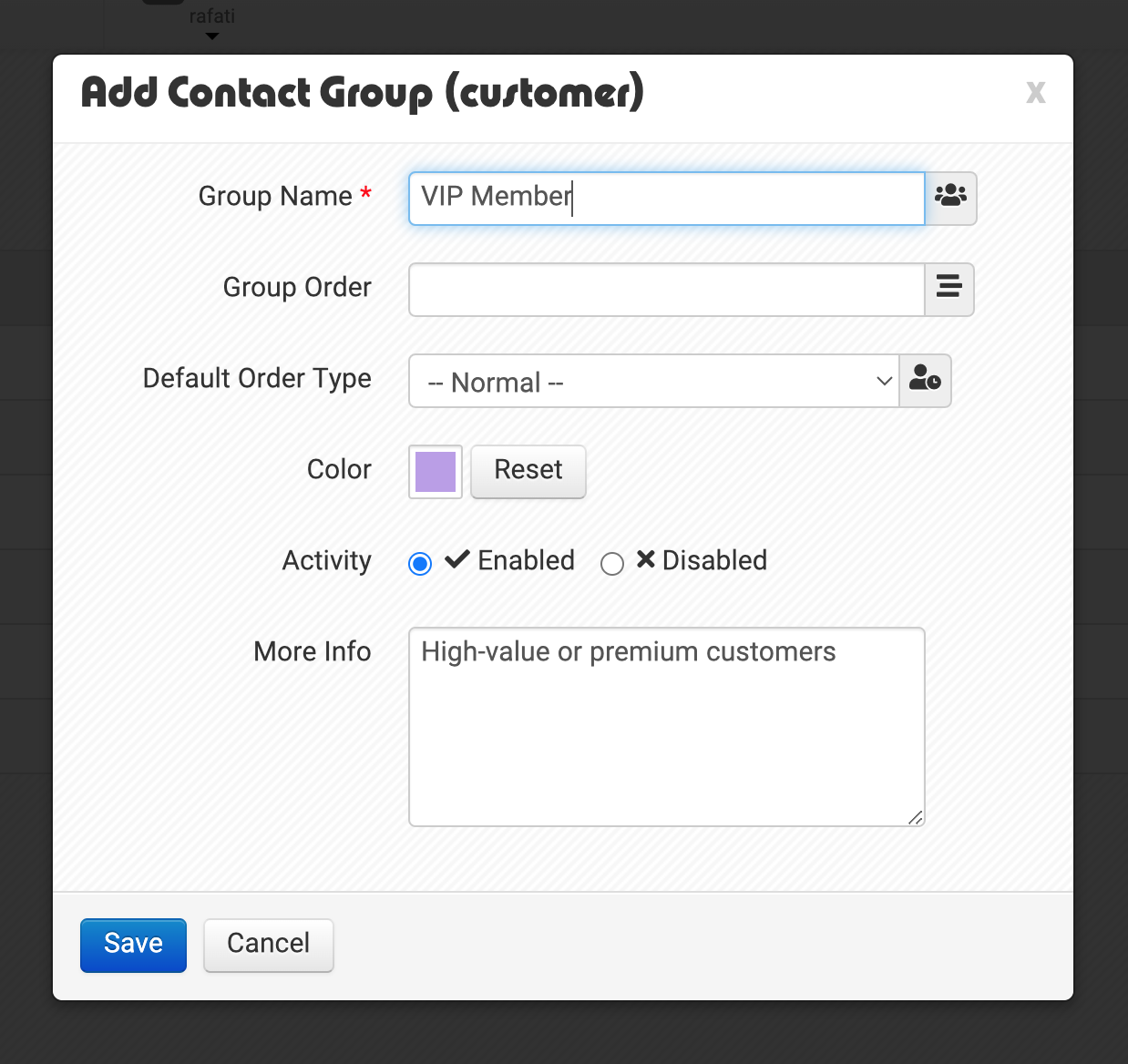
Setting a Color is very useful. Caramel can show a group indicator next to the vendor/customer name using the selected color, and it also helps when reviewing charts and reports.
Edit a group
In the groups list, each row has an Edit action. Click it to open the edit form and update the group details (same fields as creating a group).
Delete a group
In the groups list, each row also has a Delete action. When you delete a group, Caramel asks for confirmation.
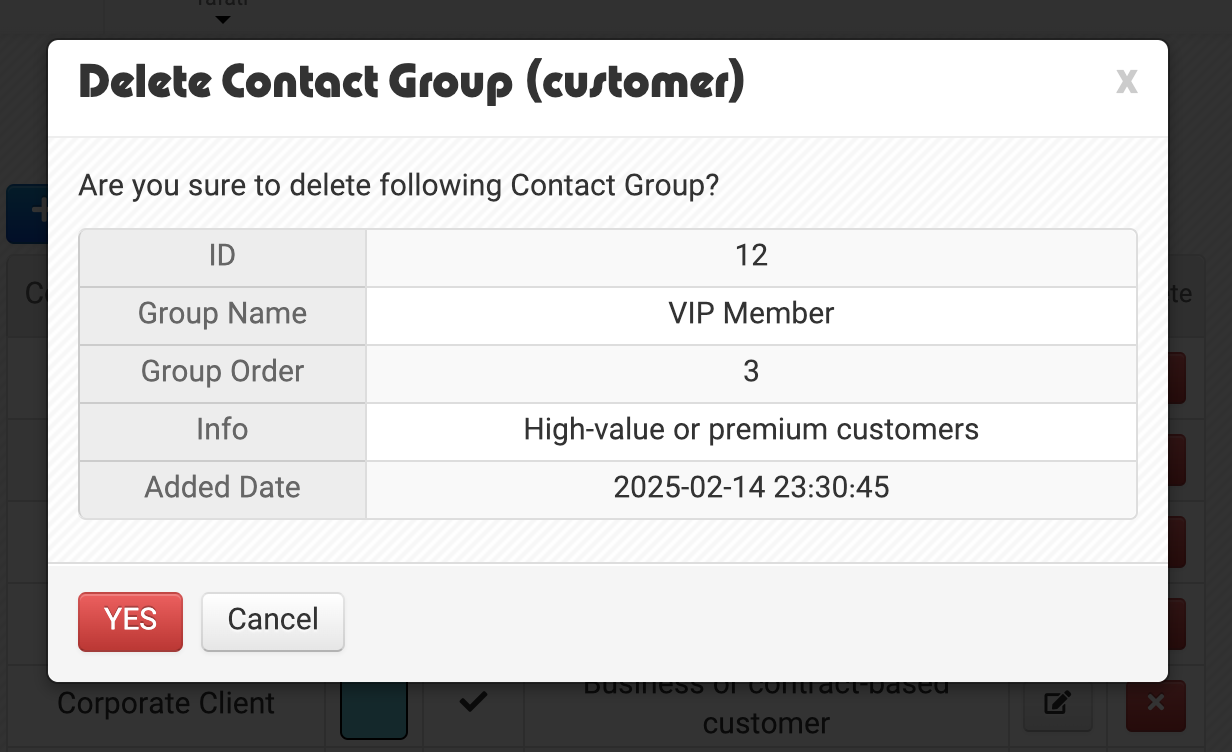
Important rules:
- You can delete a Vendor Group or Customer Group only if no vendor/customer is assigned to it.
- If the group is in use, Caramel shows an error message.
If you still need to remove that group:
- Move all vendors/customers to another group, then delete it, or
- Keep the group and set it to Disabled, or
- Rename/edit the group instead of deleting.
For sensitive cases (especially if the group is widely used), contact the support team.
Related pages: