Customers & Vendors
This page explains how to manage Customers and Vendors in Caramel.
Both sections are structurally identical and use the same forms and logic. In this guide, we explain Customers. The same structure and behavior apply to Vendors.
Customers List & Search Filters
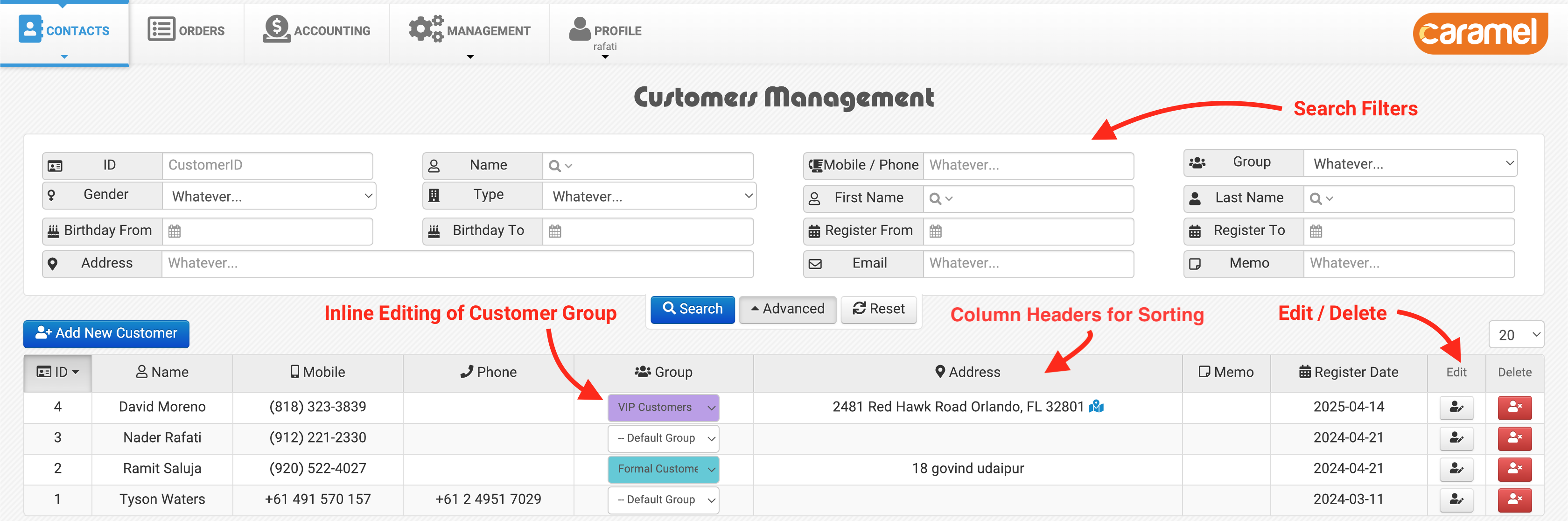
When you open the Customers page, you will see:
- A list of customers
- Search filters at the top of the page
You can select your desired filters and click Search to apply them.
- Click Advanced to display additional filter options.
- Click Reset to clear all filters.
- Click on any column header to sort the table (ascending / descending).
Customer Group can be edited inline directly inside the table.
At the end of each row, you will find:
- Edit icon
- Delete icon
Add New Customer
Click Add New Customer to open the customer creation form.
Only Full Name is required. All other fields are optional.
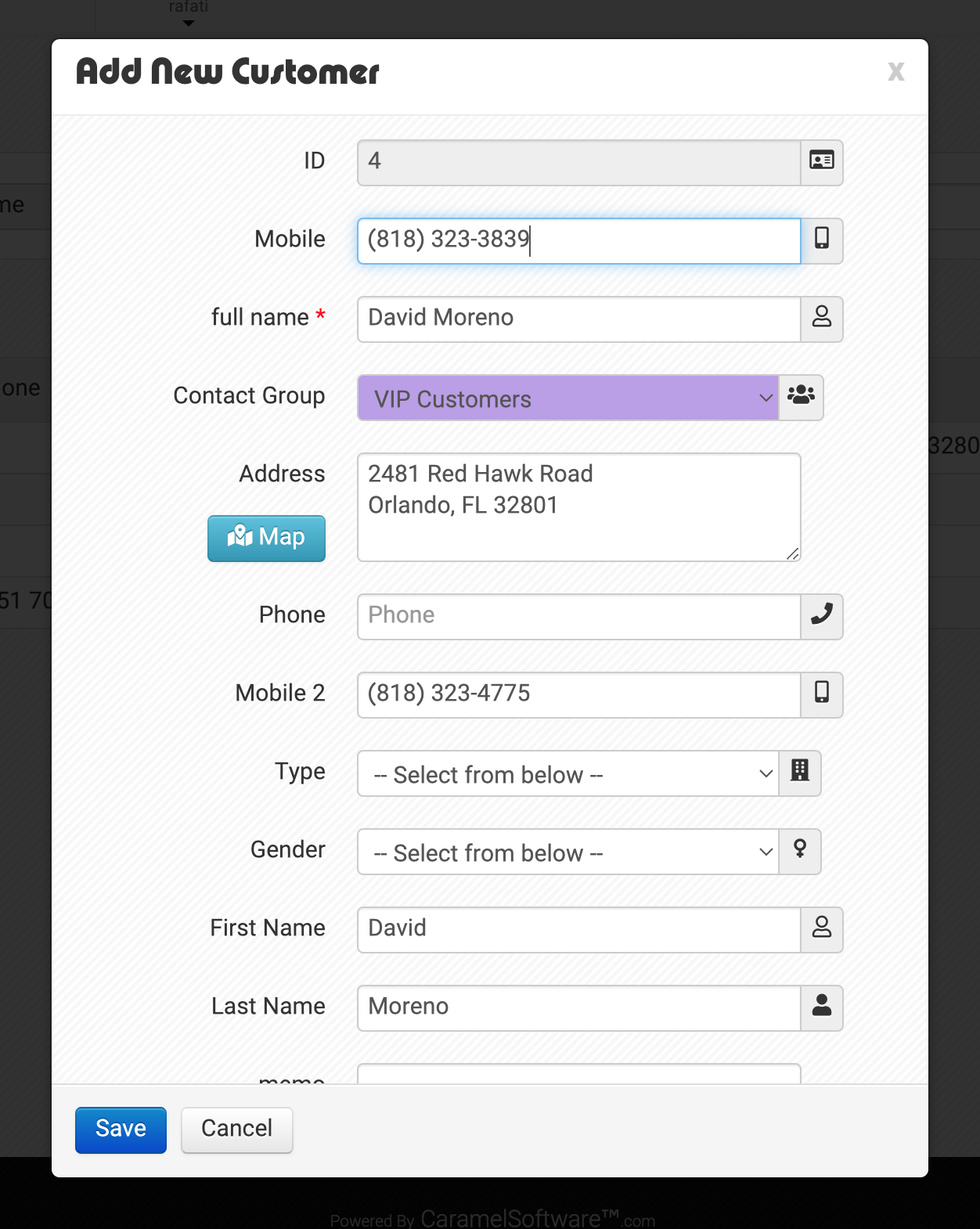
Although optional, it is strongly recommended to enter additional information such as:
- Mobile number
- Secondary mobile
- Address
- Map location
- Any other available details
More complete information makes future searches and identification faster and more accurate.
Duplicate Mobile Control
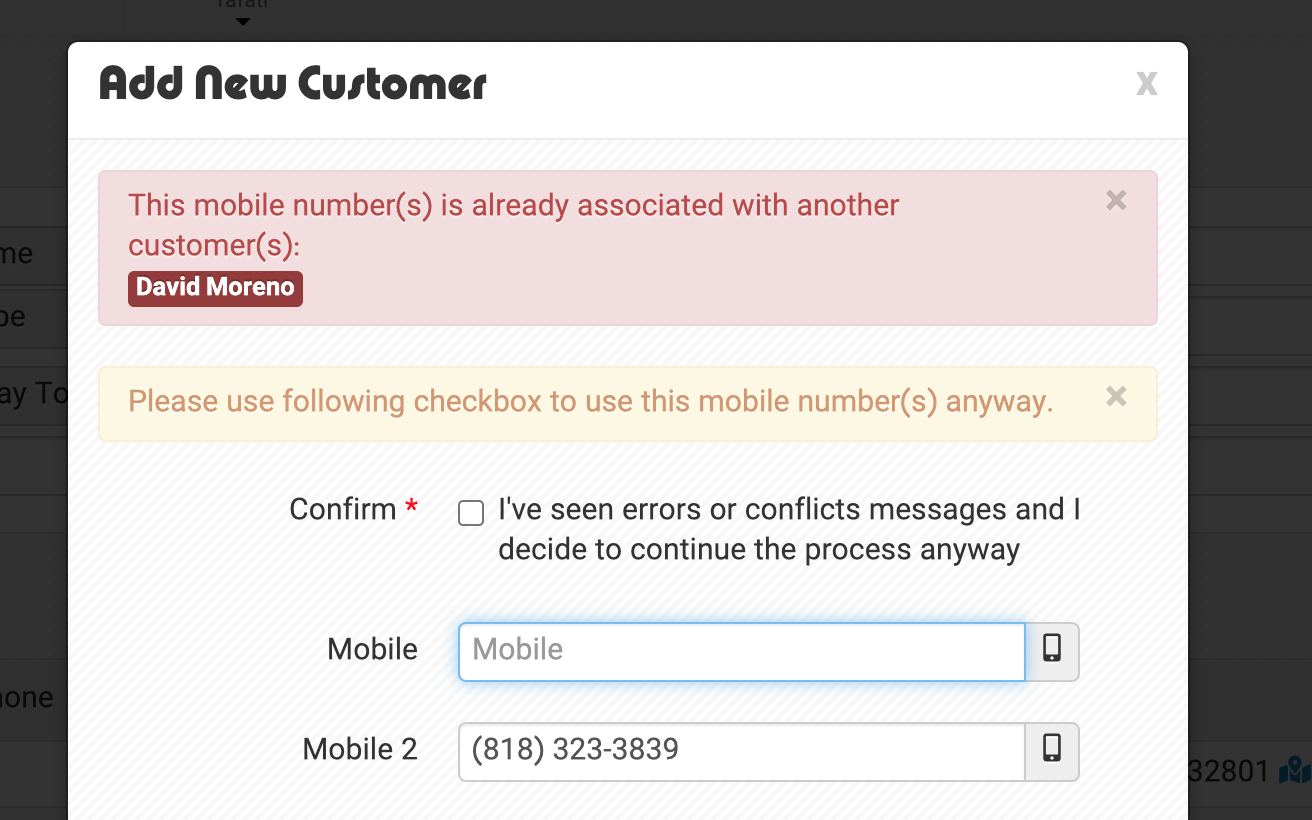
Primary mobile numbers cannot be duplicated. This helps prevent data conflicts and incorrect assignments.
If a mobile number is already registered for another customer:
- The system prevents duplicate registration.
- It displays the name of the existing record.
- You can click the displayed name to view that profile.
If a duplicate number is entered in Mobile 2:
- The system shows a duplicate warning.
- A confirmation checkbox appears.
- After confirming, you can save the form with the duplicate number in Mobile 2.
Invoice Payer (Accounting Use)
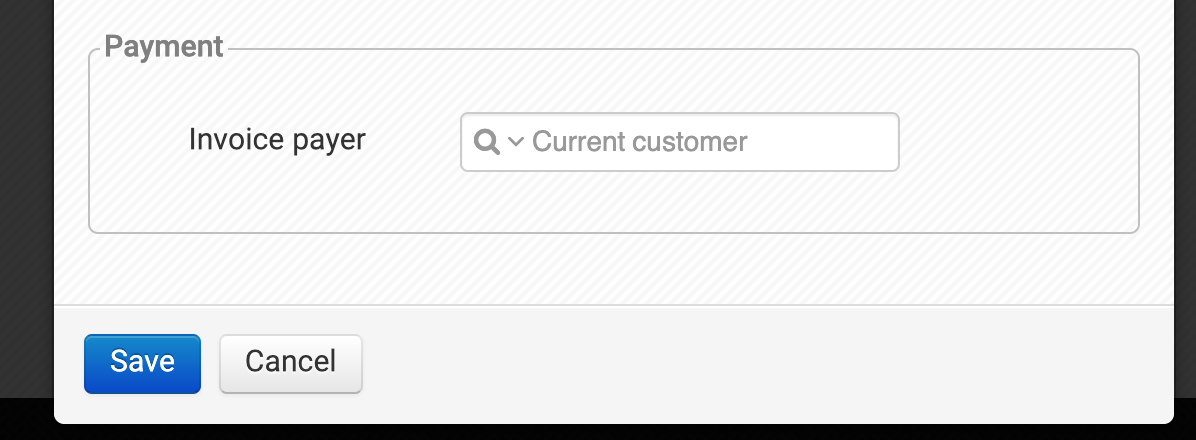
At the end of the form, there is an Invoice Payer option.
This feature is used in accounting scenarios where a parent company or a responsible individual pays invoices on behalf of others.
You can assign the main payer here.
Edit Customer
In the Customers list, click the Edit icon at the end of any row.
The edit form will open. Update the required fields and save your changes.
The form structure is identical to the Add New Customer form.
Delete Customer
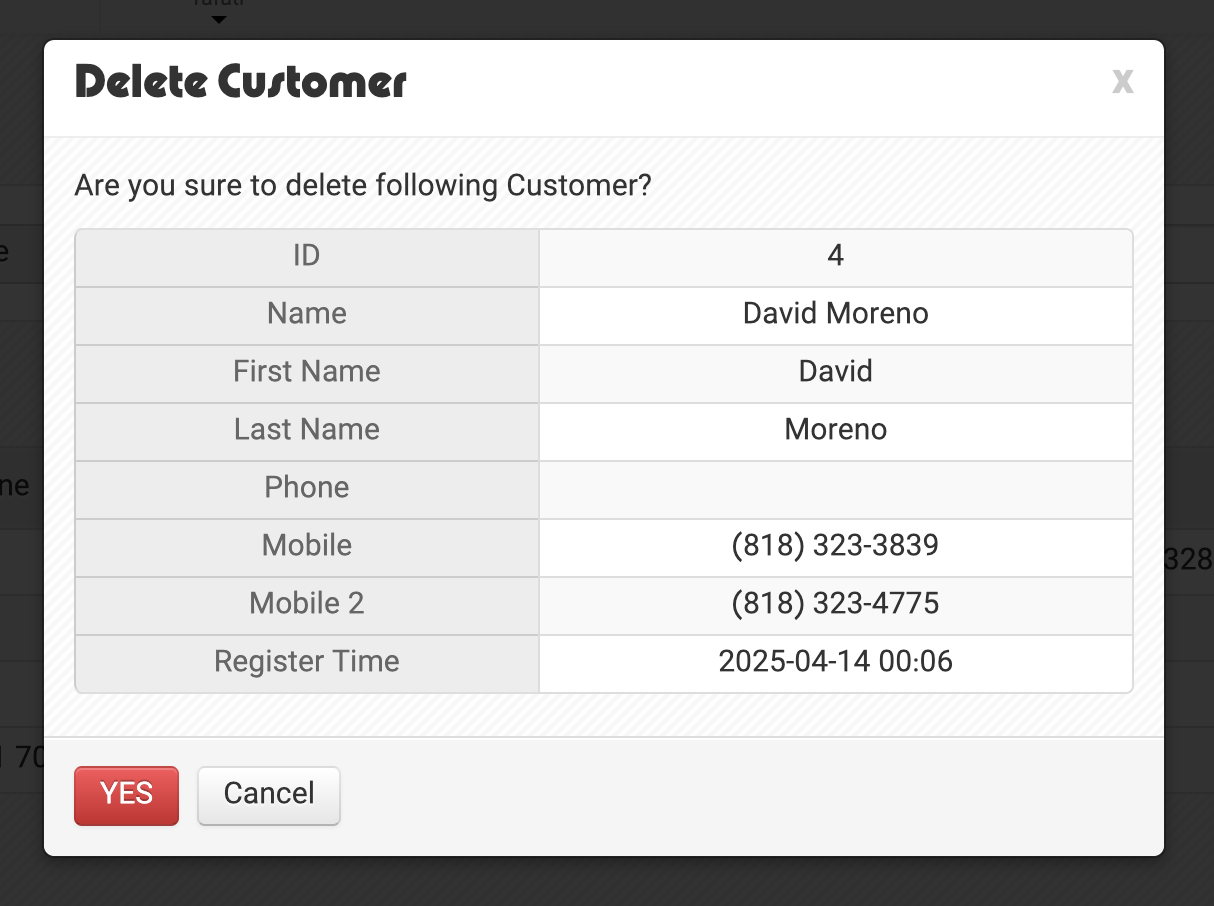
In the Customers list, click the Delete icon at the end of a row.
A confirmation dialog will appear.
A customer can only be deleted if it has no usage in other modules (for example: no orders, no transactions, and no accounting records).
If the customer has related records, Caramel will show an error message.
If deletion is absolutely necessary, all related records must be removed first.
Because this action can affect financial and operational data, contact the Caramel support team before attempting structural deletions.
For related topics: