Management (List & Search)
The Orders Management (List & Search) page is the main place in Caramel to:
- review your order list,
- build reports with filters,
- and quickly find a specific order.
This guide walks through the page from top to bottom, explaining what each section does and how to use it.
If you mainly want to find a single order fast, start with OrderID in the top menu, then refine using the Status and Customer filters.
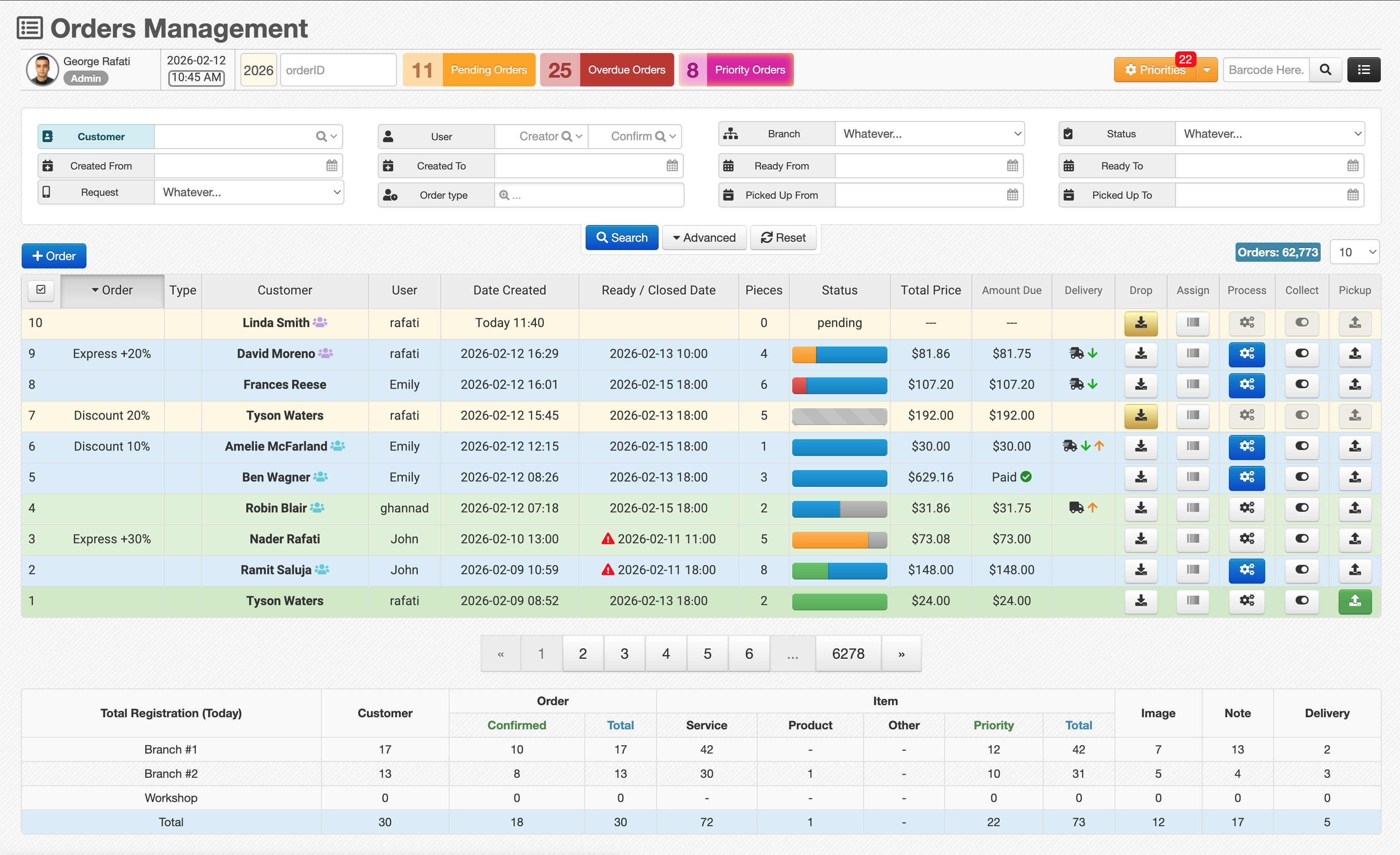
Top menu
At the top of the page you’ll see the module top menu. On Orders Management, the middle area is different from most pages: it shows alert-style counters so you can immediately focus on what needs attention.
Alert counters
- Pending orders (orange): orders that are not confirmed yet and need your confirmation to move forward.
- Overdue orders (red): orders that should have been ready by the selected ready date, but are still not ready.
- Priority orders (purple): orders you marked as higher priority for preparation.
Sometimes you may also see:
- Priorities (right side): this counter is for priority Items (not necessarily the entire order).
“Priority orders” and “Priorities” are different:
- Priority orders = the whole order is prioritized
- Priorities = some Items inside orders are prioritized
Find by OrderID
There is an OrderID input in the top menu. Enter an order number and it will highlight/show that order inside the table.
When Caramel shows other orders from the same customer, they may appear in the next rows in italic to help you quickly compare that customer’s related orders.
Use OrderID when the customer calls and gives you a number. Use filters when you’re building a report or scanning workload.
Search filters
Below the top menu, you’ll find the filter area (inputs, selects, and date ranges). This is where you define your report or narrow down results.
Most-used filters
The first row typically contains the filters used most often:
- Customer
- Status
- Creator User
- Confirm User
Status options
The Status filter includes options such as:
pendingin_processreadypicked_upclosedoverduepicked_up_not_paid
If you’re unsure which stage an order is currently in, filter by Status first—then open the order summary from the table.
Date filters
Many filters are date-based and use a From / To range, for example:
- Created Date
- Confirm Date
- Ready Date
- Closed Date
- Pick-Up Date
- Delivery Date
- …and others depending on your configuration
Some date filters (especially Delivery and Pick-Up related ones) are available under Advanced.
Reset and Advanced
At the bottom of the filter box you’ll usually see:
- Reset: clears the entire filter form
- Advanced: expands additional filters (useful for delivery/pick-up reporting)
Start with a small set of filters (Customer + Status + date range). Use Advanced only when you need delivery/pick-up details.
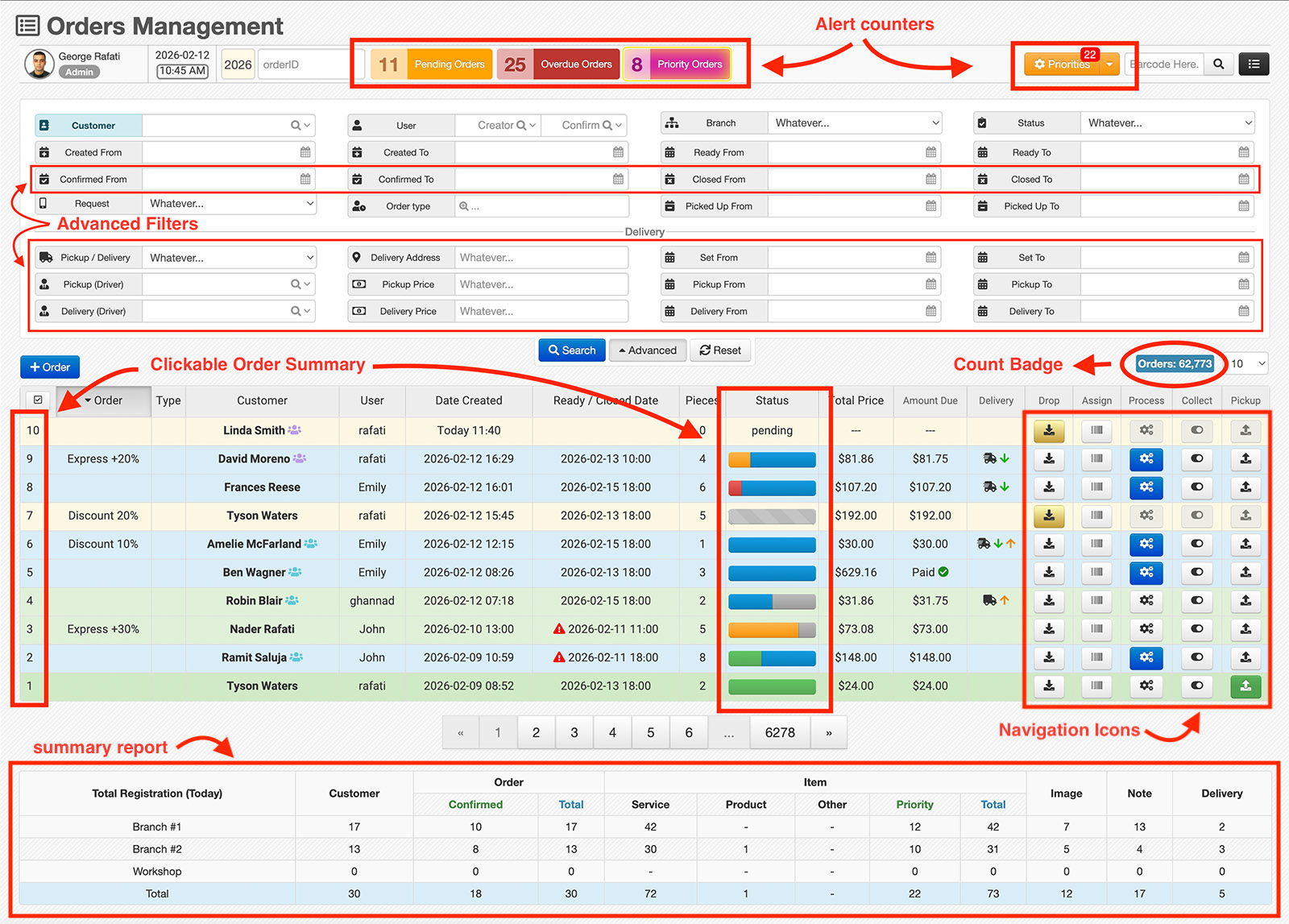
Orders table
This is the main list of orders returned by your search.
Result count badge
Near Rows per page, a badge shows how many orders match your current filters.
If the result count is under 1000, hovering (or tapping) the badge can show extra summary stats such as:
- Total Price
- Pieces
- Ready Items
- Picked up Items
- and other quick totals
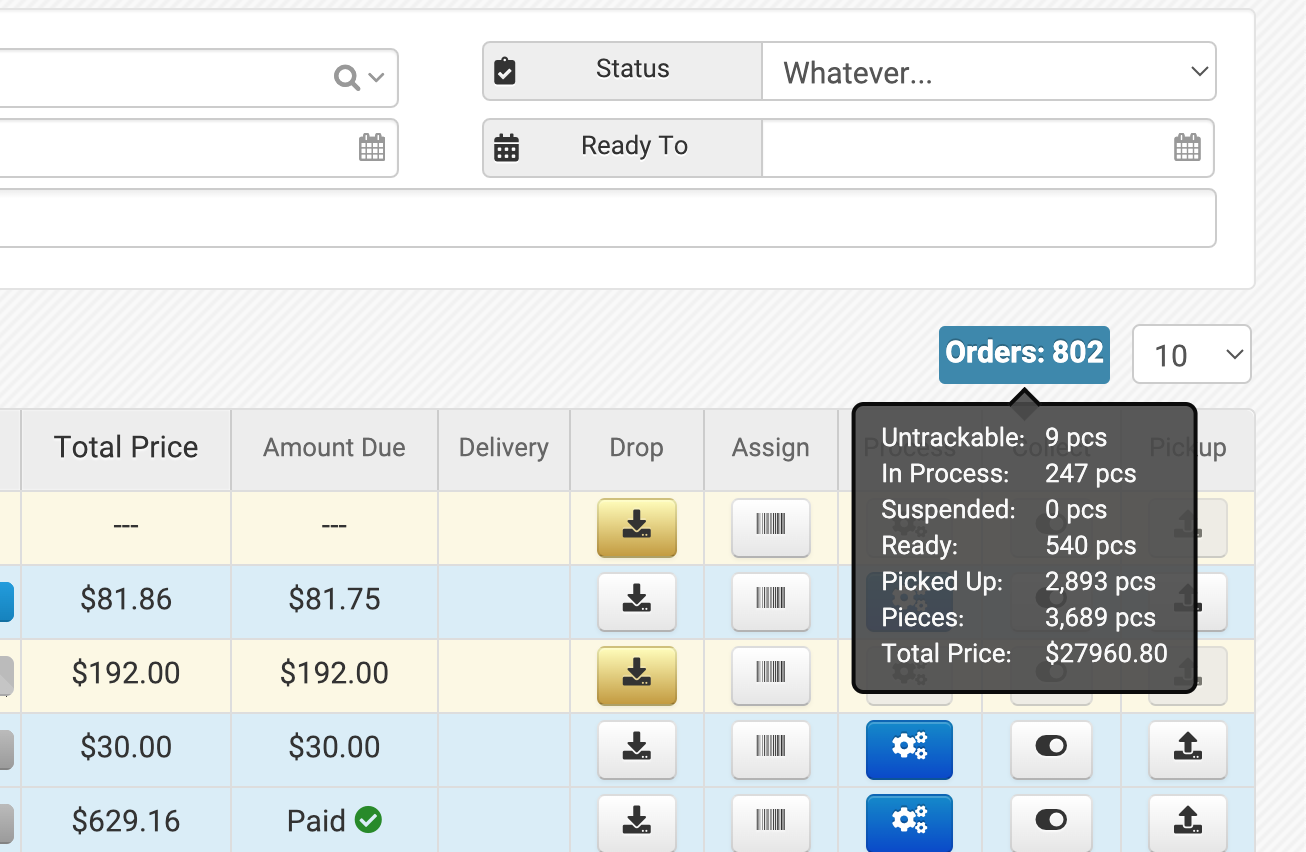
The “1000 limit” is usually for performance reasons. It can be configurable depending on your Caramel setup.
Columns and sorting
Common columns include:
- OrderID
- Type
- Customer
- Creator
- User
- Date Created
- Ready / Closed Date
- Pieces
- Status
- Total Price
- Amount Due
- Delivery
Click a column header to change sorting for that column.
Status progress bar
The Status column uses a progress bar to visualize preparation status for each order as a percentage.
Typical color meaning:
- Gray: Items not barcoded / not assigned yet
- Blue: Items
in_process - Green: Items
ready - Orange: Items collected / picked up (workflow dependent)
- Red: suspended Items
Hover the progress bar to see exact counts per segment. Click it to open deeper details for the order’s Items (locations, last action, logs, and more).
This view is useful when you want operational details without opening the full order screen.
Quick order summary (without opening the order)
Clicking the OrderID number can show a lightweight summary such as:
- order status snapshot
- Item images
- Item notes
…without entering the full order page.
Five quick navigation icons
At the end of each table row, you’ll see quick navigation icons to jump directly into key workflow steps:
Drop
Assignation
Process
Collect
Pick-up
Use these icons when you already know what you need to do next (e.g., go straight to Process after confirmation).
Pagination
Like other tables in Caramel, pagination controls appear under the orders list so you can browse additional result pages.
Daily (or monthly) summary report
Below the orders list, there is an additional report table that summarizes activity—most commonly daily, but it can also show monthly or a specific date range depending on your setup.
This report can include daily Item counts by:
- Service
- Product
- Priority
- number of Images
- number of Notes
- Delivery metrics
For deeper daily/monthly/yearly analytics (including charts), use the Accounting Dashboard, where reports are separated and more detailed.