Accounts
This page helps you review, create, edit, archive, and delete accounts in Caramel Accounting.
Use the Accounts page when you want a simple list of your accounts and their balances without working with multiple filters or complex search options.
Before You Start
The page is intentionally simple. It is mainly used for:
- reviewing account balances
- checking historical balances by date
- opening related transactions
- creating a new account
- editing or archiving an existing account
If you want to inspect transaction details behind a balance, open the related account balance from this page and continue in the Transactions page.
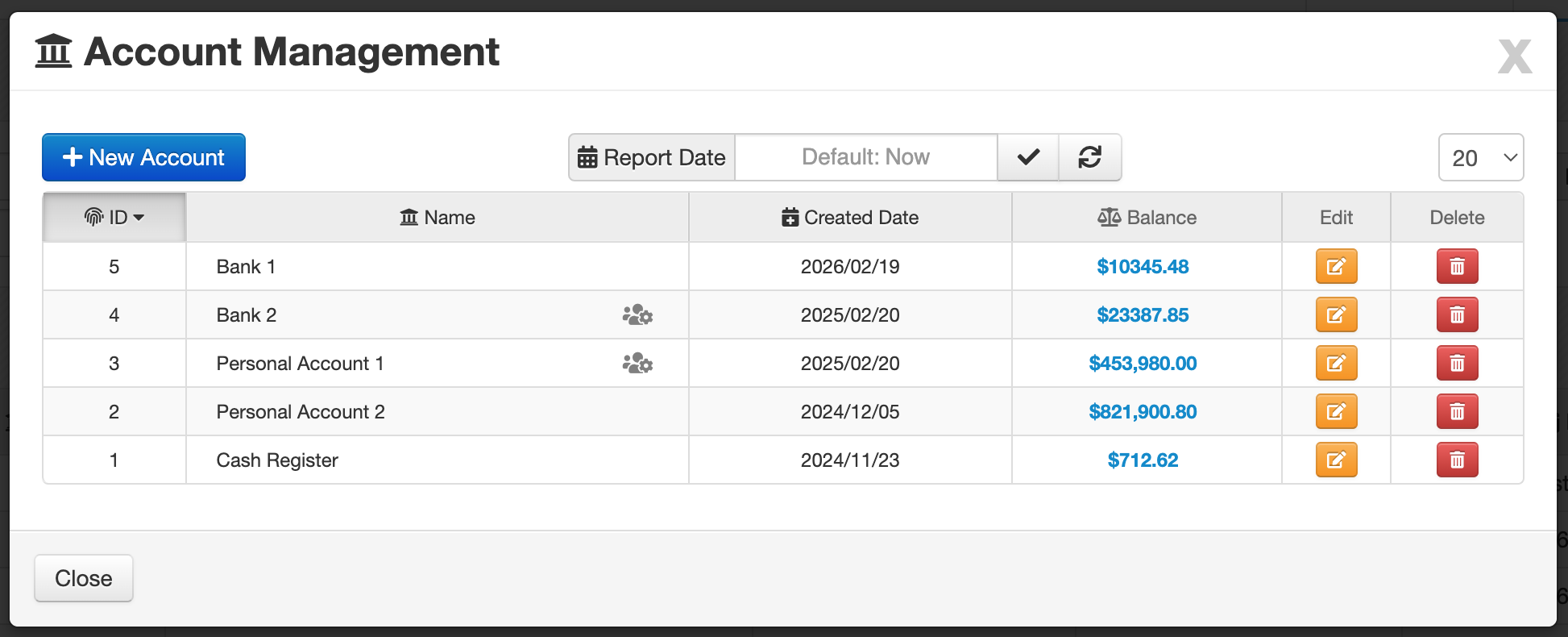
Report Date Filter
At the top center of the page, there is only one report filter:
Report Date
Next to the date input, these buttons are available:
- Apply the selected date
- Clear the date and reset the filter
The selected Report Date changes how the Balance column is calculated.
For example, instead of showing the current balance only, the page can show how much money was in each account on a specific date.
Use Report Date when you need a historical balance, such as checking how much an account contained on a past day.
Accounts List
The results area uses the standard table layout used in other Caramel pages.
The table includes these columns:
- ID
- Name
- Created Date
- Balance
Click any column header to sort the table based on that field. Clicking the same header again changes the sort direction between ascending and descending.
Default Account Indicator
In the ID column, a icon indicates that the row is set as the default Account.
The default Account can be used automatically in other forms (Payments, Credits, etc.) to speed up data entry and reduce repetitive selection.
Balance Column Behavior
By default, the Balance column shows the balance calculated for the current date.
When you click a balance value, Caramel opens the related Transactions page for that account and date so you can review the individual transaction records behind that amount.
When you hover over the balance, a tooltip shows the calculation sources:
- Deposit
- Withdraw
- Opening Balance
This helps you understand how the displayed balance was calculated.
If the account has transactions recorded after the selected report date, an additional icon is shown next to the balance:
- indicates future activity exists for that account
Clicking this icon opens the Transactions page with a date range and account filter adjusted for that account, so you can review the later records separately.
Hovering this icon shows a tooltip with:
- Upcoming Deposits
- Upcoming Withdraws
- Upcoming Balance
This indicator is useful when the balance for the selected date is correct, but newer transactions already exist and may explain why the current balance is different.
Row Actions
At the end of each row, there are small action buttons for the selected account:
- Edit the account
- Delete the account
When Delete Is Not Available
An account cannot be deleted if it still has transaction history.
For example, if even one transaction exists for that account, deletion is blocked unless all related transactions are removed first.
When deletion is not allowed, the delete button changes to archive mode:
- Archive the account
Archiving an account keeps its history but prevents it from being used in normal accounting forms.
An archived account:
- is hidden from various accounting forms
- cannot receive new deposits
- cannot receive new withdraw records
- remains available for historical reference
Archiving is usually a better option than deleting when an account has already been used in real records.
Create a New Account
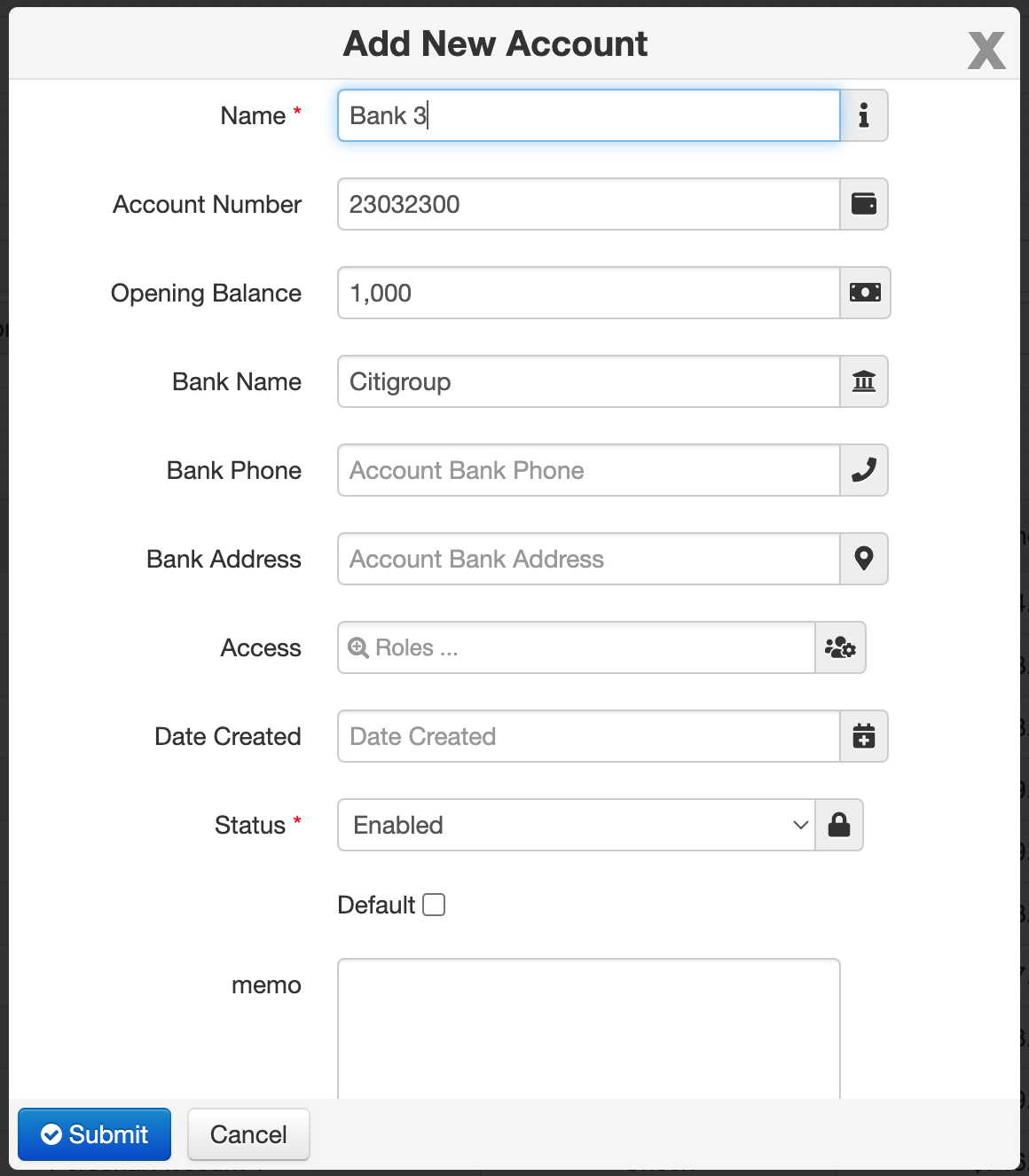
Click New Account to open the account form.
You can then enter the account details and save the new record.
Required Field
Only this field is required:
- Name
All other fields are optional unless needed for your workflow.
Important Fields
Access
Use Access to limit this account to a specific role.
This is helpful when only certain users or teams should be allowed to work with that account.
Default
Use the Default checkbox to mark the account as the default option in accounting forms.
This helps speed up data entry because the account can be selected automatically in places where an account is required.
Opening Balance
Opening Balance is the amount that already existed in the account before you started tracking transactions in the system, or the amount you want Caramel to treat as the starting point.
Rules:
- Opening Balance cannot be negative
Other Fields
The rest of the form is straightforward and usually does not need special explanation:
- Bank Name
- Bank Phone
- Bank Address
- Date Created
- Memo
Adjusting an Account Balance
If all deposits and withdrawals have been recorded accurately from the beginning, you usually do not need to adjust the account.
However, many users start using accounting features more carefully from a certain point onward, and older account balances may not match the real-world balance anymore.
There are two common ways to handle this.
Option 1: Create a New Account
One clean solution is:
- create a new account
- archive the old account
- continue using the new account with accurate records from now on
This is often the simplest choice when older records are incomplete or unreliable.
Option 2: Correct the Existing Account
If you want to keep using the same account, you can adjust it depending on the difference between the real balance and the software balance.
When the Real Balance Is Higher Than the Software Balance
If the actual balance is greater than what Caramel shows, the easiest solution is usually to increase the Opening Balance by the difference.
Other possible methods:
- register a General Transaction as Deposit
- transfer the amount from another account
In these cases, it is usually better to use a transaction date far enough in the past so it does not interfere with current operational reports.
When the Real Balance Is Lower Than the Software Balance
If the actual balance is lower than what Caramel shows, using Opening Balance is more limited because it cannot be negative.
You can only reduce the opening balance if an opening balance already exists and is still large enough to be decreased.
Otherwise, use one of these methods:
- register a General Transaction as Withdraw
- transfer the amount from this account to another account
As with positive corrections, it is usually better to place the corrective transaction at an old date so it does not affect your current reporting period unnecessarily.
Do not use random correction dates in active reporting periods unless you intentionally want those corrections to appear in current reports.
Recommended Workflow
For better long-term accuracy:
- use Opening Balance only for the starting amount
- use Deposit, Withdraw, and Transfer for real financial activity
- archive old accounts instead of deleting used accounts
- use Report Date whenever you need a balance for a past date
- open the Transactions page to inspect the details behind a balance