Pick-Up
The Pick-Up page is used for the final delivery of Items to the customer.
It is typically used by drivers or staff responsible for handing Items to customers.
Like other operational pages in Caramel, this screen is designed to work primarily with barcode scanners or RFID readers, so the operator usually does not need to interact directly with the computer—except in specific cases such as viewing images, selecting storage locations manually, or performing a manual return from delivery.
The typical Pick-Up workflow:
- Scan an Item (or select it manually)
- Continue scanning Items of the same order
- Execute the Pick-Up action using a command barcode or the top menu
Caramel validates the Items and registers the delivery under the current user.
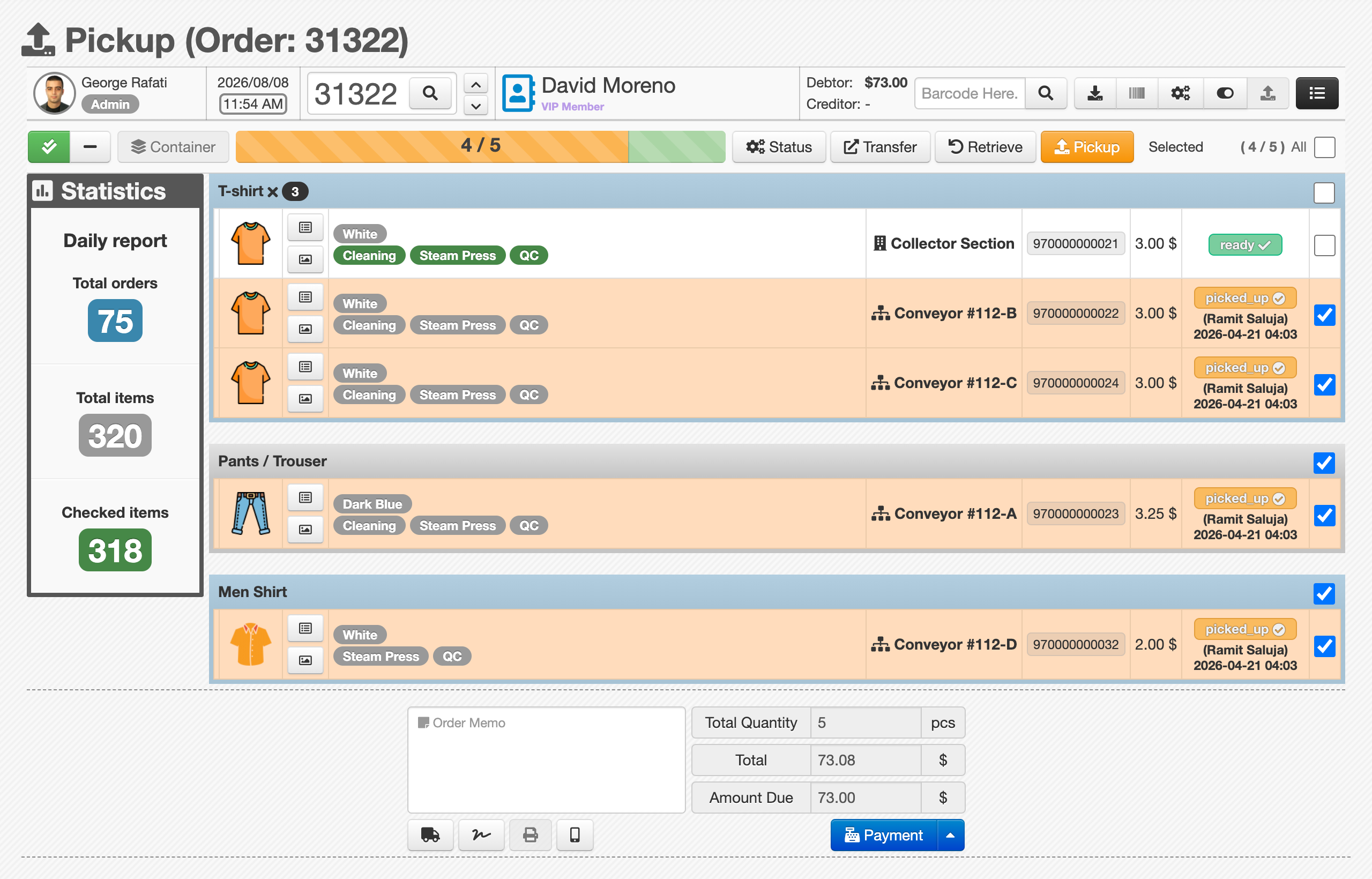
How Pick-Up works
In most workflows, the operator scans Items belonging to the same order and then executes the Pick-Up command.
Example:
- Scan the first Item of an order
- Continue scanning the remaining Items of the same order
- Execute Pickup () or scan the Pickup command barcode
Caramel checks that the Items are ready for delivery. If everything is valid, the delivery is registered under the current user (or driver).
Common validation error
A common situation occurs when an Item from another order is scanned during the process.
Caramel prevents delivering Items that belong to a different customer or order.
After scanning the first Item of an order, you are expected to continue scanning Items belonging only to that order.
If needed, you can scan a Reset Pickup command barcode to clear the current session and allow a new order to start.
This behavior represents the recommended workflow of Caramel but can be customized depending on your operational needs.
Top menu (Pick-Up row)
The second row of the top menu contains the following actions (left to right):
Container Order progress (progress bar) Status Transfer Retrieve PickupAll buttons are disabled by default except Status.
Once an Item is selected (via barcode/RFID or manual row selection), the relevant buttons become active.
The list normally shows Items belonging to one order.
If an Item from another order is scanned, Caramel shows an error to prevent delivering an Item to the wrong customer.
What each button does
Container
Allows manual selection of the current storage location of the Item.
This is typically used when the container or storage location is not assigned through barcode or RFID scanning and must be selected manually.
Order progress bar
Shows the progress of delivered Items within the order.
As Items are picked up, the progress bar fills until the entire order is delivered.
Status
Displays a summary of the order and the history of all Items in that order.
This helps operators quickly check the current status before performing delivery.
Transfer
This action is also available in the Assignation page.
It allows transferring selected Items to another order. This can include:
- moving Items to another order of the same customer
- transferring ownership to another customer
This is typically used when an order was registered incorrectly and needs correction.
Retrieve
Used to return Items after delivery.
If the customer or driver returns Items after pickup, this option allows you to reverse the delivery.
After clicking Retrieve, Caramel asks which operations should be repeated. For example:
- returning the Item to the workflow
- restarting certain processing steps
You can also choose not to repeat any steps and simply register the return.
Pickup
Registers the final delivery of the Item.
When clicked, a confirmation modal appears where you can:
- confirm the pickup
- manually select the delivery person (for example, a driver)
If the process is performed using barcode scanning, this step is usually automatic, and the system assigns the currently logged-in user as the delivery operator.
Page layout
Statistics panel (left)
A fixed statistics panel displays the daily activity of the currently logged-in user on the Pick-Up page.
Typical metrics include:
- Total orders
- Total items
- Checked items
Checked items refers to Items that were delivered using barcode scanning, rather than manual selection.
The Statistics panel can be hidden during system setup by the support team.
Items table (right)
The table lists the Items of the selected order.
Each row typically includes:
- Item icon
- Slides button (Item images)
- Notes button
- Item options displayed sequentially
- current storage location (example:
conveyor #183-F) - Item status, such as:
untrackablein_processsuspendedreadypicked_up
- Item price
Clicking the row or selecting the checkbox at the end of the row selects the Item and activates the relevant top-menu actions.
Final Action Bar
At the bottom of the page there is a Final Action Bar, similar to the one used in the Drop page.
It provides quick access to common order-related actions such as payments, SMS notifications, printing, customer signature capture, payment history, and order memos.
For details about these controls, see: