Items Report
This page provides a detailed, filter-based report for Items. Use it when you need highly specific outputs (daily operations, monthly summaries, quality returns, tailoring workloads, and more).
At the top, you’ll find a large filter area. Below it, the results table updates based on your selected filters.
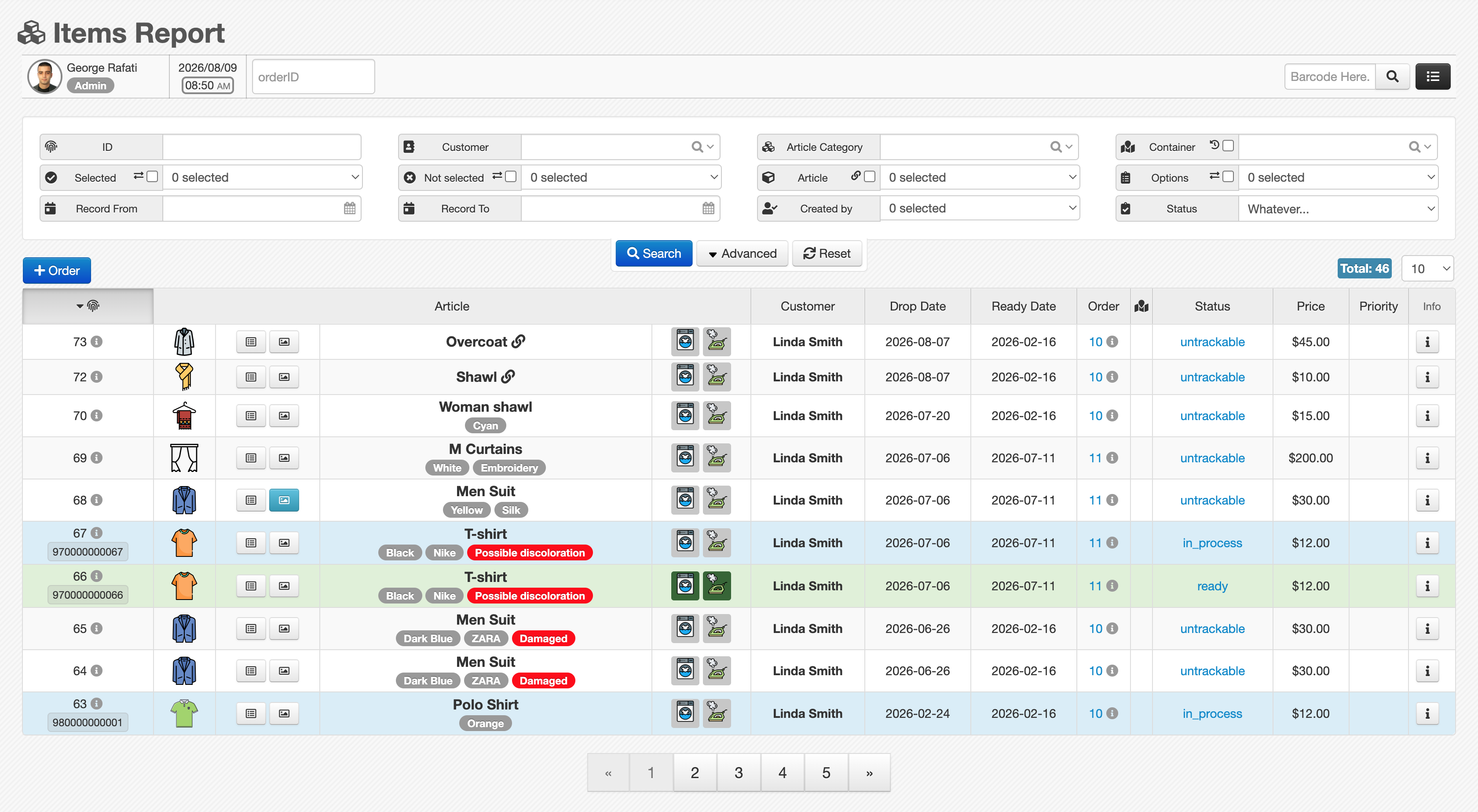
Page layout
Filter area (Basic + Advanced)
The filter section is organized into 9 rows of filter blocks (each row contains 4 filters):
- Basic filters (first 3 rows): the most commonly used filters, always visible.
- Advanced filters (next 6 rows): hidden by default and displayed when you click Advanced.
Each filter includes a label and an icon, so most of them are self-explanatory.
If your report feels “too empty” or “too large”, start by reducing the number of filters and re-applying them step-by-step.
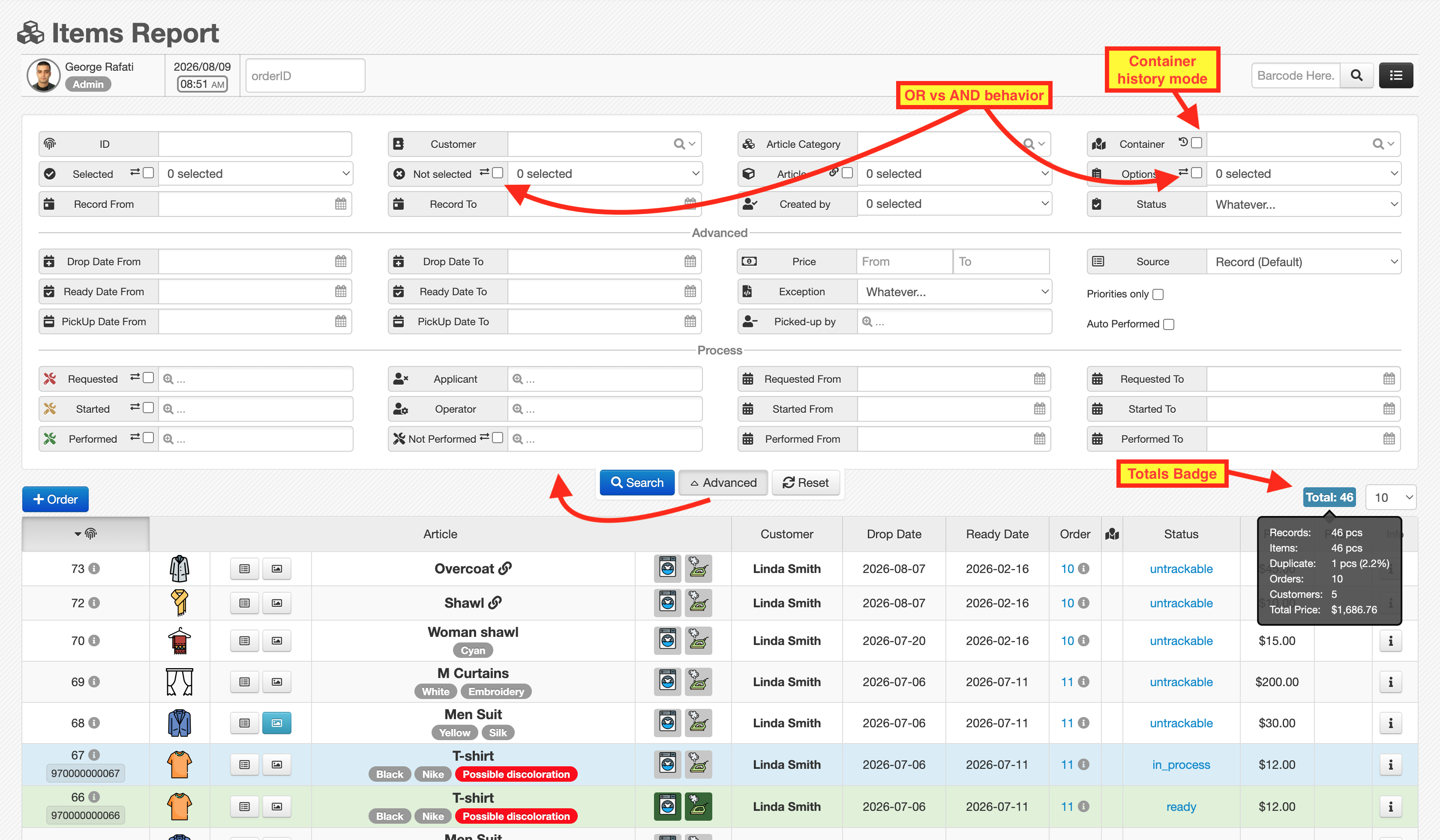
Multi-select filters: OR vs AND behavior
Some filters are multi-select (Chosen / multi-select style). For these filters, you may see an additional checkbox that changes how your selections are combined.
OR mode (at least one match)
In many filters, the checkbox is shown with .
- Enabled: selections are treated as OR
- The record matches if it contains at least one of your selected values.
- Disabled: selections are treated as AND
- The record matches only if it contains all selected values.
If you select two statuses (e.g., Washing and Dry Cleaning):
- OR mode: show records that are in Washing or Dry Cleaning.
- AND mode: show records that are in Washing and Dry Cleaning (usually much narrower).
Special behaviors on specific filters
Article linked-only mode ()
Next to the Article filter you may see .
When enabled, it limits results to linked Articles (example: a suit where Jacket and Pants are linked together).
Container history mode ()
Next to the Container filter you may see .
When enabled, the report also searches inside the Item’s Container history (not just the current Container). This is useful when Items move between storage locations and you need the full trace.
Saved report shortcuts (Reports dropdown)
With many filters available, it’s easy to forget the exact setup that produced a useful report. To solve this, there is a Reports dropdown at the top of the filter area.
- This dropdown is maintained by the support team as a set of shortcuts.
- Selecting a report automatically applies a predefined set of filters and loads the results.
Examples of typical shortcuts:
- Today’s laundry workload
- Monthly summary of returned defective Items (customer returns)
- Monthly tailoring report
If you need a new shortcut, share your desired conditions with the support team. They can add it to the Reports list for quick reuse.
Records vs Items (important)
By default, the results table shows Records, not necessarily a unique list of Items.
Because a single Item can appear in multiple Orders (or be referenced multiple times across workflows), the report may generate multiple Records for the same Item.
Force unique Item list using Source
Use the Source filter to switch the output mode:
- Default: show Records
- With Source selection: force the report to show Items list instead of Records
If your totals look “too high”, check whether you’re currently viewing Records rather than unique Items.
Totals badge (top of table)
If your role has access, you will see a Total badge above the table.
- The badge shows the current row count.
- Hovering the badge reveals additional totals such as:
- Records
- Items
- Duplicate
- Orders
- Customers
- Total Price
What “Duplicate” means
Duplicate indicates that the same Item appears in multiple Records (typically across different Orders).
It is shown:
- as a total count (pcs)
- and as a percentage (in parentheses)
Results table
Columns
The results table typically includes:
ID, Article, Customer, Drop Date, Ready Date, Order Number, Status, Container, Price, Priority
Sorting
Click any column header to sort:
- first click: ascending
- second click: descending
Article column details
The Article column contains a compact summary of the record, including:
- Article icon
- Selected options (e.g., color, pattern)
- Operation icons for the record
- when an operation is completed, it may appear highlighted (often green)
- Photo slideshow button:
- Notes button:
Item history (row action)
At the end of each row, there is an info button: .
This opens the Item’s history, such as:
- which Order the Item is currently associated with
- what operations have been applied
- previous Orders and past states/statuses
Scanning an Item barcode can show the same history view, so you can retrieve the full trace without manually searching in the report.