Calendar
Purpose
This page is used to view and manage the calendar, holidays, and other events in Caramel. Calendar events can affect other modules as well. For example, holidays and daily capacity can be used when the system calculates the Ready Date for orders.
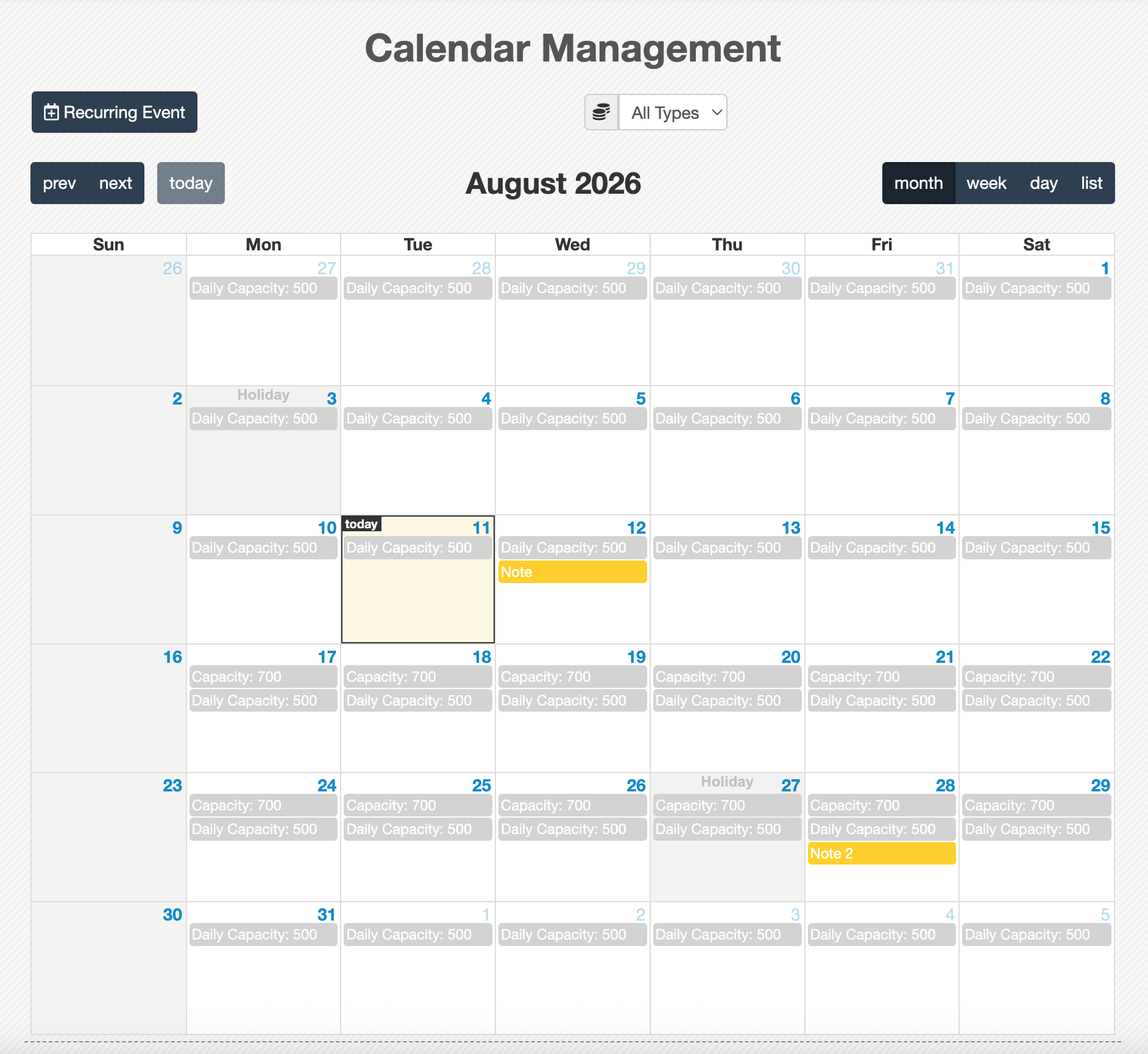
Page layout
The calendar is shown in Month view by default.
You can use the controls at the top of the page to navigate and change the view:
- Month, Week, and Day: Change the calendar view.
- Prev and Next: Move to the previous or next page of the calendar.
- Today: Jump back to the current date.
- Update Yearly Calendar: Updates holiday-related events and similar yearly data from online sources.
- Recurring Event: Opens the form for creating a recurring event.
The Calendar page is not only for viewing events. It is also used to manage scheduling rules that may affect operational planning in other parts of the system.
Working with events
There are two common ways to work with events in this page:
- Click on an empty area in the calendar to create a new one-day event. The clicked date is selected automatically.
- Click on an existing event block to open its edit form. This works for both one-day and recurring events.
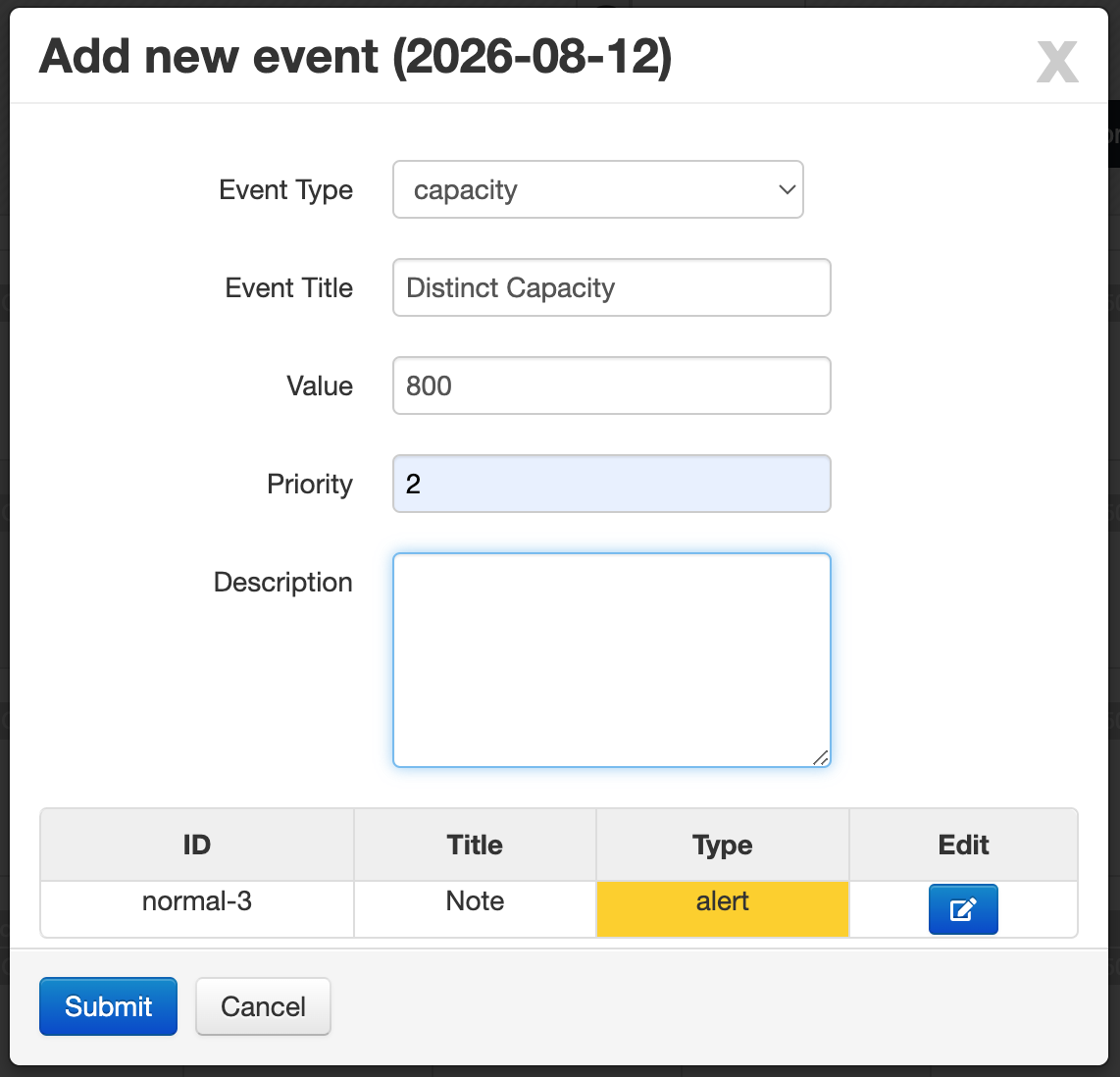
One-day event form
Use this form when you want to create or edit an event for a specific date.
- Event Type: Select the type of event, such as capacity, holiday, note, or similar options.
- Event Title: Enter the title of the event.
- Value: Enter a value based on the selected event type.
- Priority: Defines the priority of the event. Lower numbers mean higher priority.
- Description: Enter an optional description for additional details.
At the bottom of the form, a table shows other events already registered for the selected day. This helps you review the existing schedule before saving a new event.
If multiple events exist on the same day, priority helps the system decide which one should be considered first.
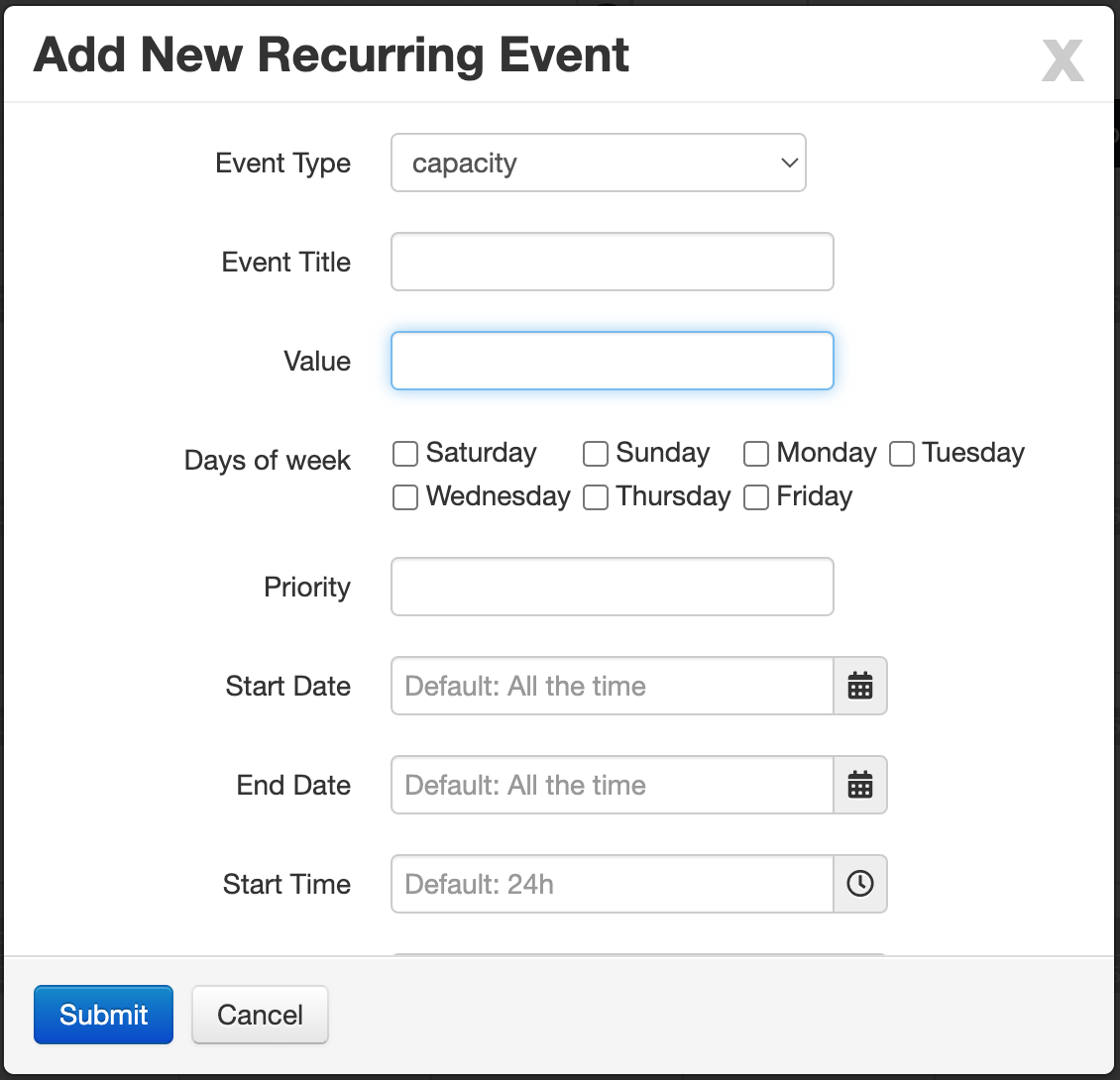
Recurring event form
Use the recurring event form when the same event should repeat on specific days or during a time range.
- Event Type: Select the type of event, such as capacity, holiday, note, or similar options.
- Event Title: Enter the title of the event.
- Value: Enter a value based on the selected event type.
- Days of Week: Select one or more weekdays such as Saturday, Sunday, Monday, and so on.
- Priority: Defines the priority of the event. Lower numbers mean higher priority.
- Start Date: Defines when the recurring event starts. The default value is All the time.
- End Date: Defines when the recurring event ends. The default value is All the time.
- Start Time: Defines the start time of the event. The default value is 24h.
- End Time: Defines the end time of the event. The default value is 24h.
- Description: Enter an optional description for additional details.
At the bottom of the form, a table displays other recurring events so you can review them before creating or editing a new one.
Event types and usage
Depending on how your system is configured, calendar events can be used for different purposes. Common examples include:
- Holidays
- Daily capacity limits
- Notes for specific dates
- Operational reminders
- Schedule exceptions
These events can later be used by other modules. For example, order scheduling may use holiday and capacity events when determining the expected Ready Date.
Related usage in other modules
Calendar settings are especially useful when another part of the system needs date-based decision making. For example:
- Holidays can make a date unavailable.
- Capacity events can limit how many items can be planned for a day.
- Notes can provide extra operational context for specific dates.
Because of this, it is important to keep calendar events accurate and up to date.
Recurring events are useful for rules that repeat over time, while one-day events are better for exceptions or date-specific changes.