Units
This page is used to manage measurement units and unit indicators in Caramel.
These two sections are separate, but both are used in other modules such as Articles, Orders, and Accounting. They become especially important when defining articles and later when registering orders on the Drop page, where quantity and price calculations depend on them.
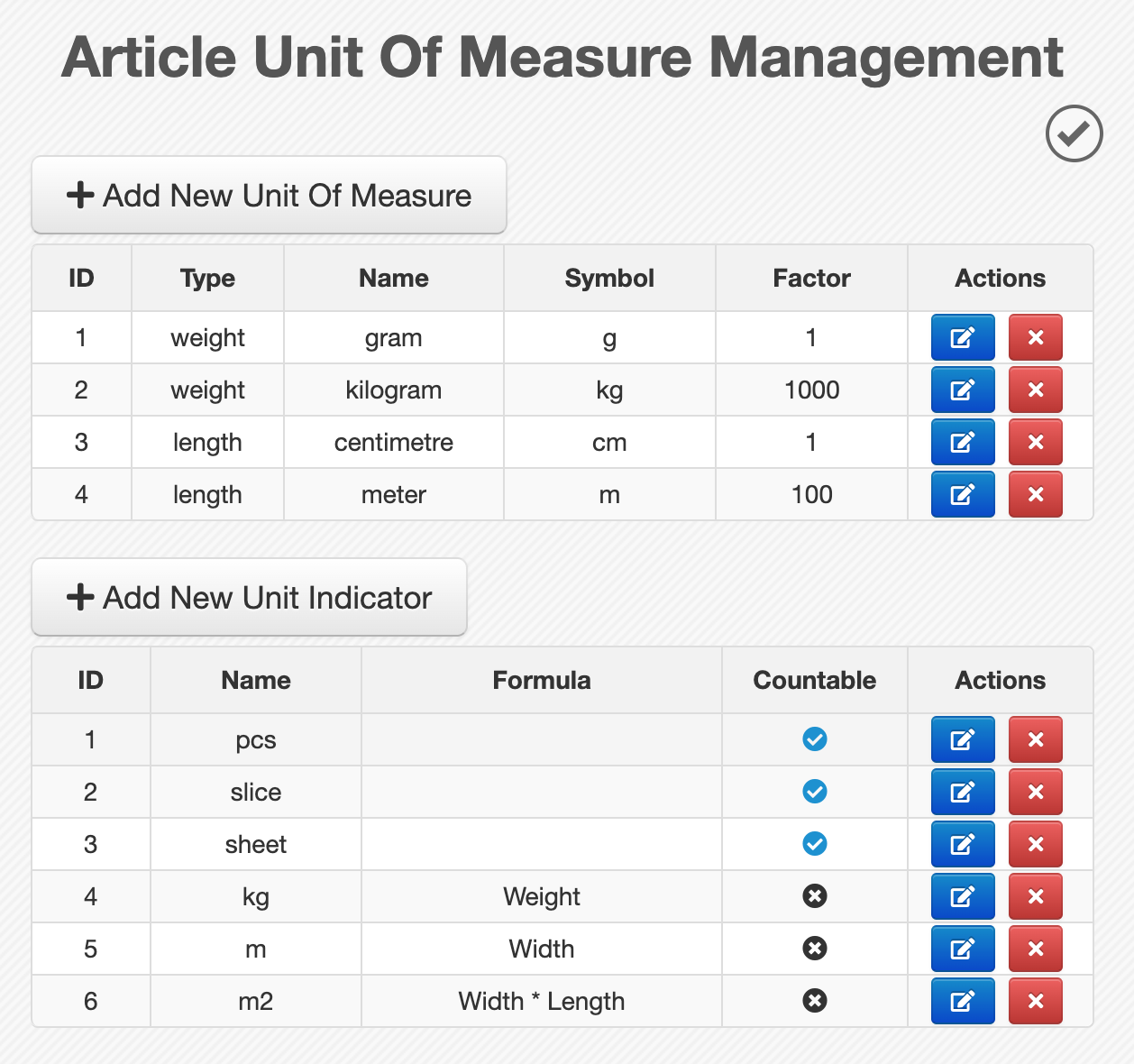
Page layout
The Units page contains two separate tables:
- The first table is for Unit of Measure
- The second table is for Unit Indicator
Each row in both tables includes action buttons at the end:
- Edit: Opens the selected record for editing
- Delete: Removes the selected record
At the top of each table, there is a create button:
- New Unit Of Measure Adds a new unit of measure
- New Unit Indicator Adds a new unit indicator
Although these two sections are managed on the same page, they serve different purposes. A Unit of Measure defines the measurement system itself, while a Unit Indicator defines how a value should be calculated.
Unit of Measure
A Unit of Measure defines the base and conversion units used for measurable values such as weight or length.
These units are later used in article definitions and in order-related quantity calculations.
Create or edit a Unit of Measure
To add a new record, use New Unit Of Measure.
The form includes these fields:
- Uom Type: The measurement category. At the moment, Caramel supports two types:
WeightandLength. - Uom Name: The unit name, such as
Kilogram,Gram,Centimeter, orMeter. - Symbol: The short display symbol for the unit, such as
kg,g,cm, orm. - Factor: The numeric conversion factor for units of the same type. For example, if
Gramis the base unit with factor1, thenKilogramcan be defined with factor1000.
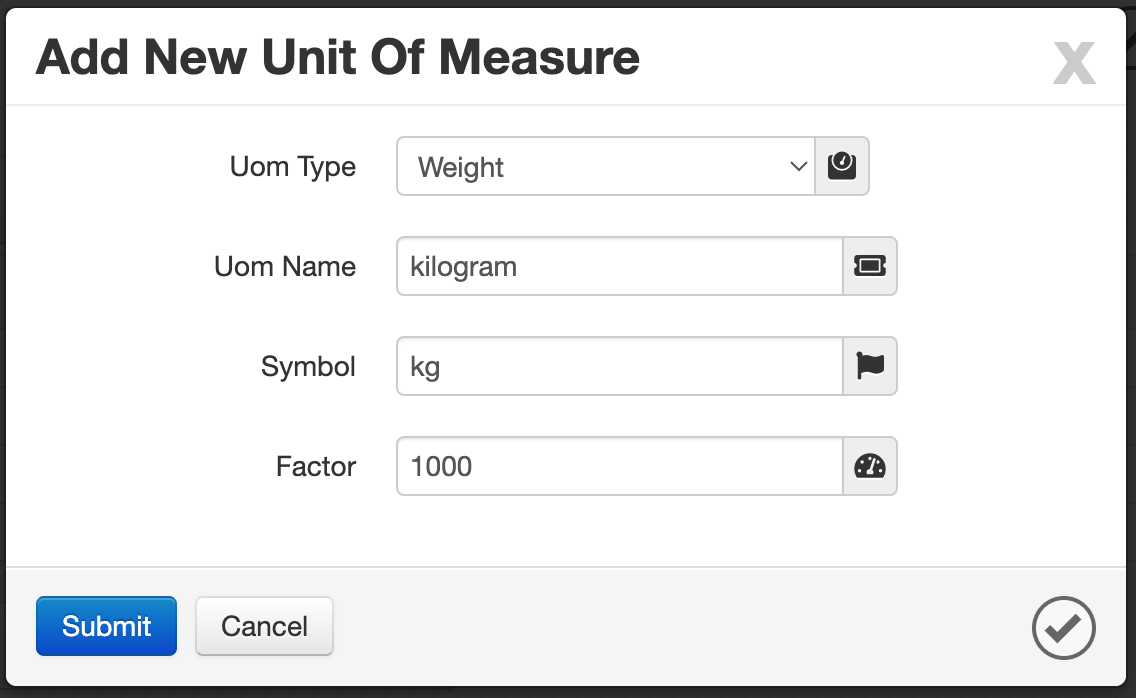
Example
For weight units:
Gram→ factor =1Kilogram→ factor =1000
For length units:
Centimeter→ factor =1Meter→ factor =100
This allows Caramel to convert values correctly when the units belong to the same type.
The factor should be entered based on a shared reference unit within the same type. For example, all Weight units should use a consistent base, and all Length units should use another consistent base.
Unit Indicator
A Unit Indicator is used to define a calculation formula.
These formulas are mainly used later in the Orders module, especially on the Drop page, where the system can request input values from the user and calculate the final quantity automatically.
Create or edit a Unit Indicator
To add a new record, use New Unit Indicator.
The form includes these fields:
- Indicator Name: The name of the indicator.
- Formula: The calculation formula. In this field, Caramel automatically treats letters and words as variables and symbols such as
*,/,+,-, and parentheses as mathematical operators. - Countable: Specifies whether the calculated result should be treated as countable (
Yes) or not (No).
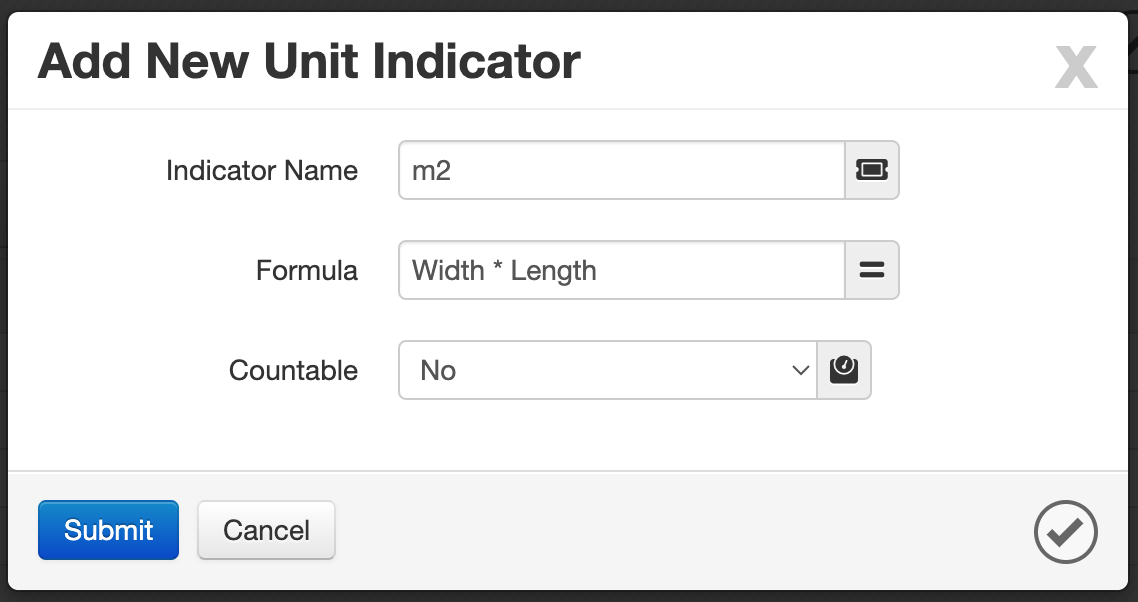
How formulas work
When you enter a formula, the system detects the variable names automatically.
For example, if you define this formula:
Length * Height
Caramel understands that Length and Height are variables. Later, during order entry, the system asks the user to enter values for these fields, then applies them in the formula and calculates the result.
This is useful for area, dimension-based, or other measurable services.
Example use case
A unit indicator for square measurement can be defined like this:
- Indicator Name: Square Meter
- Formula:
Length * Height
When this indicator is used in an order, Caramel asks for both Length and Height, then multiplies them to produce the calculated quantity.
Countable option
The Countable field determines whether the result of the formula should be considered a countable quantity.
This option can be useful in some reports, statistics, or item-count-related calculations where the system needs to distinguish between measurable results and countable values.
Where these settings are used
Both Unit of Measure and Unit Indicator are referenced in other parts of Caramel, including:
- Articles
- Orders
- Drop
- Accounting-related calculations
Because of this, it is recommended to define these values carefully before starting daily data entry.
Changing units or indicators after they are already used in articles or orders may affect later calculations and reporting. Review existing usage before editing or deleting records.