Operations
Operations are one of the core configuration entities in Caramel. They are used to define how work is priced, estimated, tracked, validated, and processed across the system. They also help control dependencies between tasks, reduce operational errors, support equipment-related workflows, and improve staff oversight.
This page is used to manage Services, Operations, and their sorting structure. In Caramel, Service and Operation Group refer to the same concept and may be used interchangeably in the interface.
Changes on this page can affect pricing, order entry, processing logic, and operational flow across the system. It is recommended to review major changes with the support team before applying them.
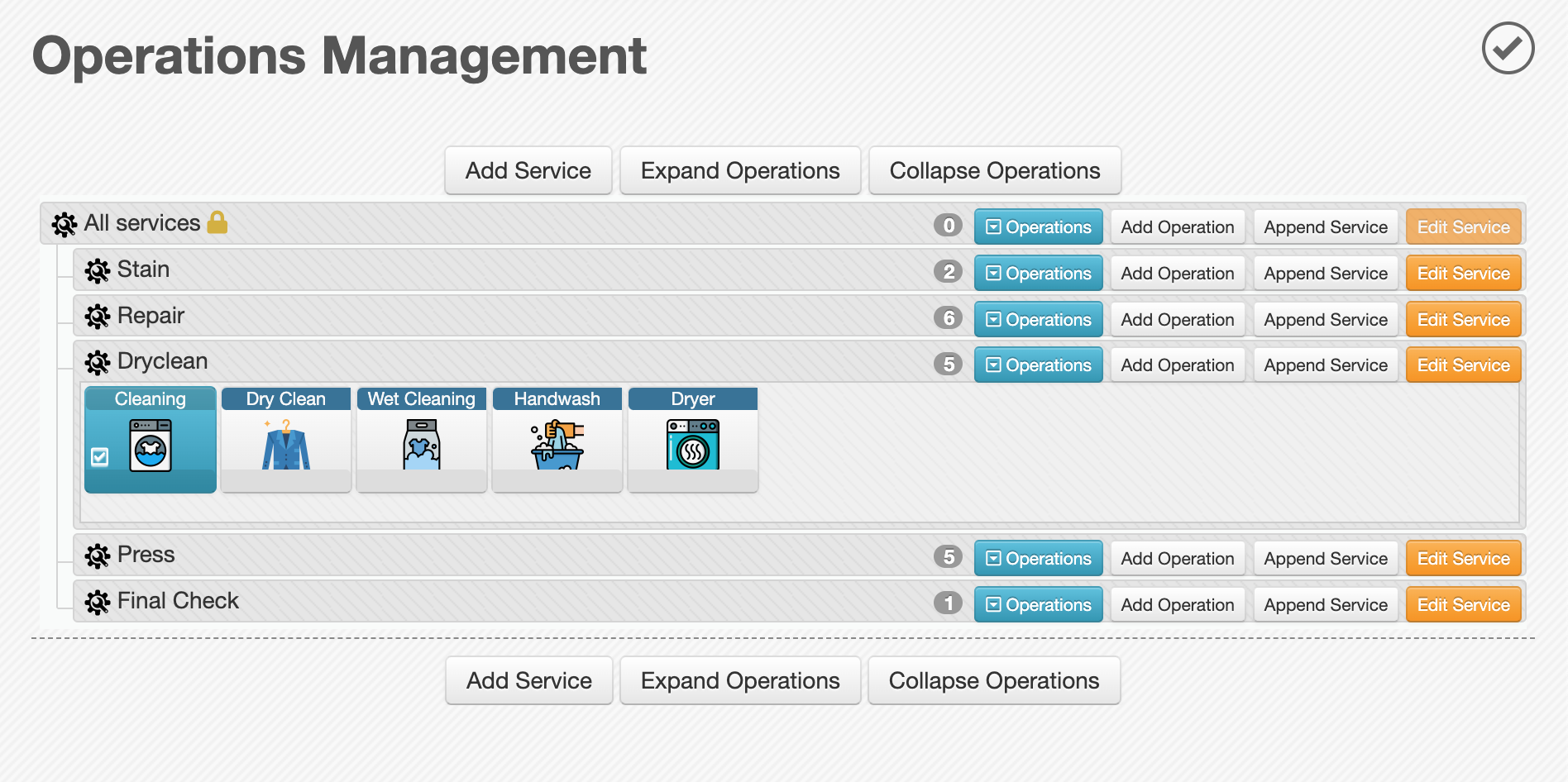
Page layout
When you open Management > Operations, you see a tree-style sorting structure. Each row represents a Service and can be reordered by drag & drop. Services can also be nested under other services to build a parent-child structure.
Each service row shows its name and icon on the left, and action buttons on the right.
Service row actions
- Operations expands the selected service and shows its Operations as square cards.
- Add Operation opens the Add Operation form and automatically selects the current service.
- Append Service opens the Add Service form and sets the current service as the parent.
- Edit Service opens the Edit Service form.
When a service is expanded, its Operations appear as cards. These cards can also be moved by drag and drop, either for sorting inside the same service or for moving them to another service. Selecting a card opens the Edit Operation form.
Selecting Operations again collapses the row.
Header and footer actions
At the top and bottom of the sorting tree, the page provides these actions:
- Add Service creates a new service.
- Expand Operations expands all services and shows all operation cards.
- Collapse Operations collapses all expanded services.
Available forms
This page includes two main forms:
- Add/Edit Service
- Add/Edit Operation
Service form
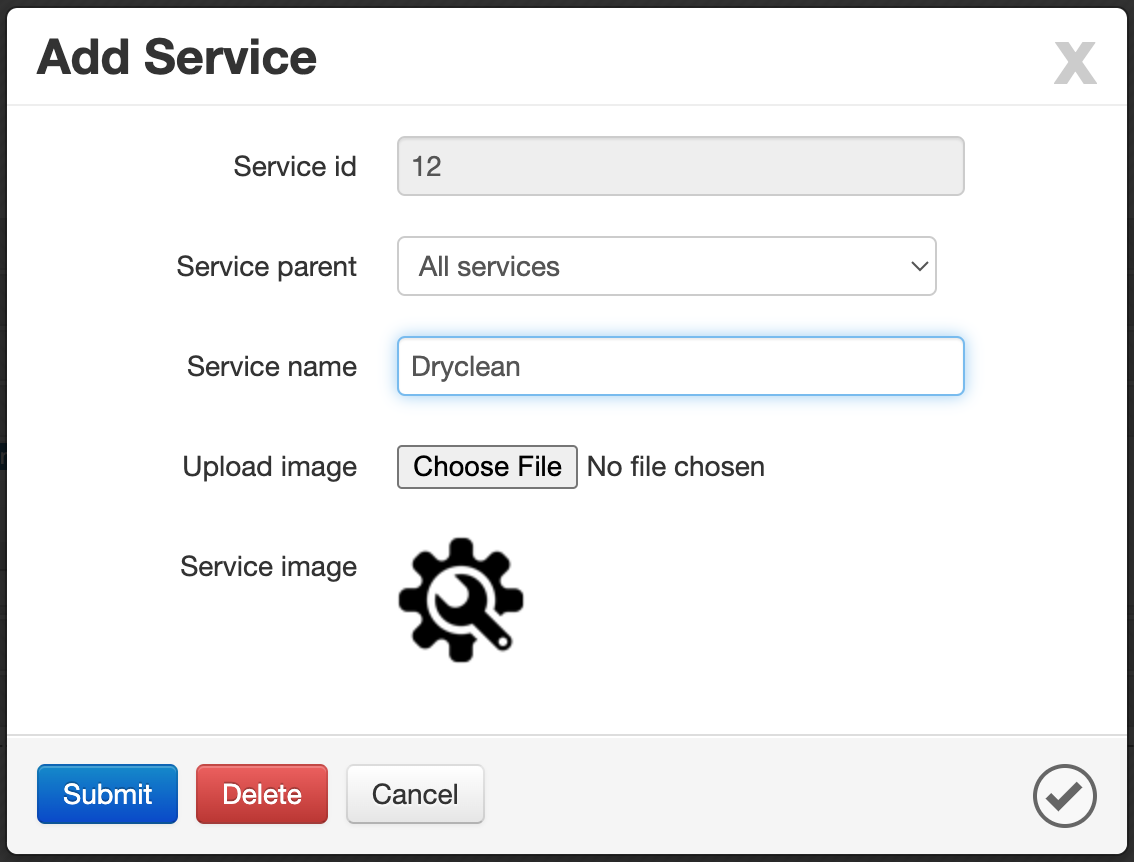
Use this form to create a new service or update an existing one.
- Service ID: Automatically generated by the system. This field is read-only and shown for reference only.
- Service Parent: Selects the parent service. If left empty, the service is created as a top-level item. You can still move it later by drag and drop.
- Service Name: The display name of the service.
- Image: Upload an image for the service.
Operation form
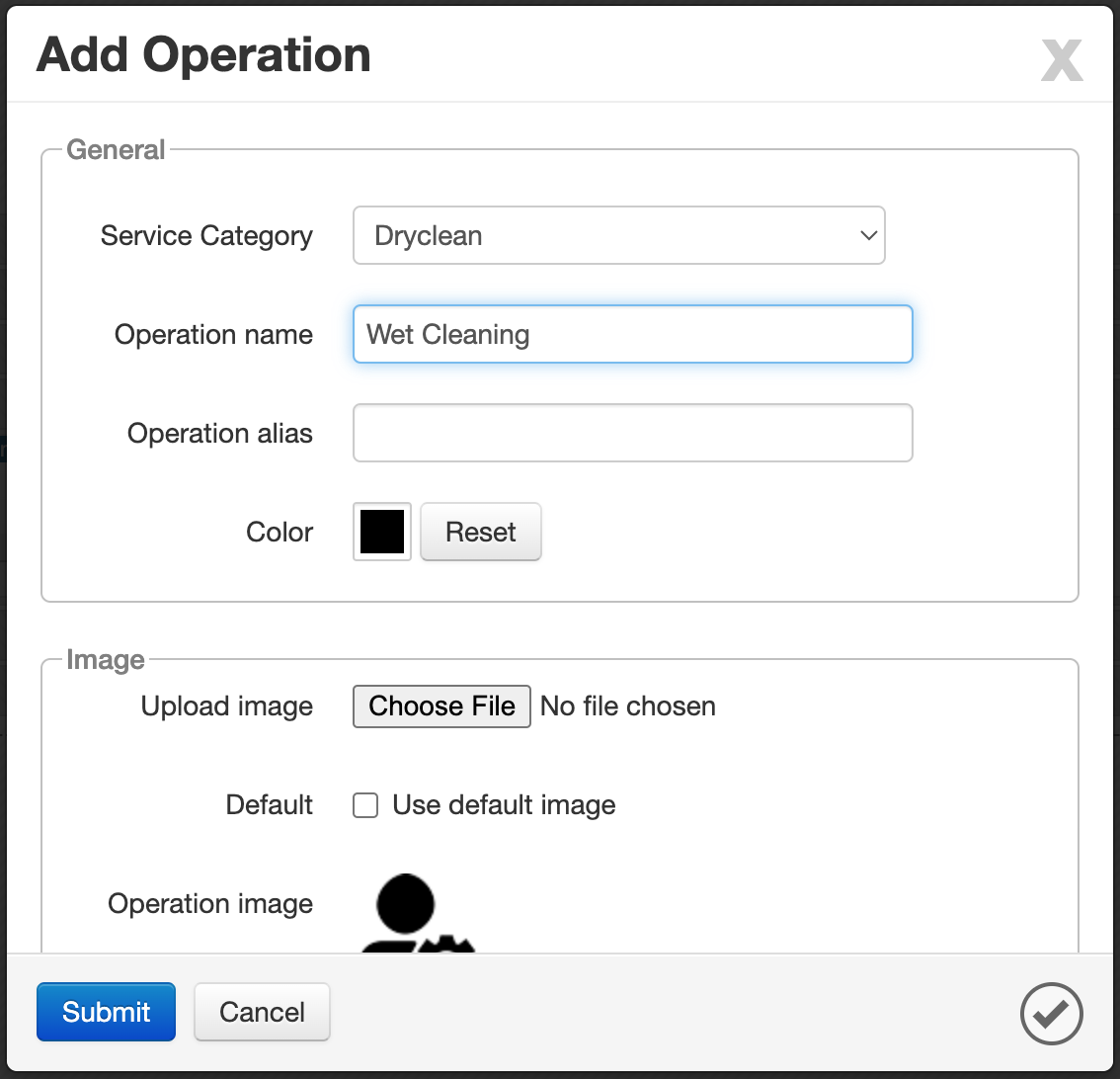
The Operation form is divided into multiple sections to organize settings more clearly.
-
General: This section contains the main identity and display settings of the Operation.
- Operation ID: Automatically generated by the system. This field is read-only and shown for reference only.
- Service Category: Selects the parent service for the Operation. You can also move the Operation later by drag and drop.
- Operation Name: The internal name of the Operation.
- Operation Alias: Optional. Useful when staff should see the internal name, but the customer should see a different label in printed receipts or the app.
- Color: Sets a custom color for the Operation.
-
Image: Use this section to define the visual icon of the Operation.
- Image: Upload an icon or image for the Operation. Flat-style icons usually work best.
- Use Default Image: Uses the system default image instead of a custom one.
For better visual consistency, use simple flat icons for Operations. Ex: FlatIcon.com
-
Default Config: This section defines the default financial and behavioral values used for the Operation.
- Price: Default price of the Operation.
- Discount Cap: Maximum allowed discount for this Operation.
- Cost: Default estimated cost of the Operation.
- Duration: Default estimated duration.
- Service-Level Agreement: Selects the default SLA from the predefined list. These values are configured earlier in the system and can be used to inform the customer on receipts or in the app.
- VAT Class: Selects the tax class already defined in the Accounting module and the VAT page.
- Preselected:
Yes/No. Controls whether this Operation is automatically selected for the Item during order creation in Drop. - Save Selection:
Yes/No. Keeps the last selected state for the same Item. For example, if the Operation was selected once for a specific Item, it can be selected automatically again the next time. - Variable:
Yes/No. Controls whether the price must be entered each time during Item creation in Drop. This is useful for highly variable services where entering the price directly is faster than editing a fixed value each time.
-
Order: This section controls how the Operation behaves during order entry and customer-facing output.
- Default permissions
- View: Controls whether the Operation is visible during order creation in Drop.
- Allocate: Controls whether the Operation can be selected during order creation.
- Modify: Controls whether default values such as price, discount, cost, and similar values can be changed during order creation.
- Usage
- Optional: Allows the Operation to be skipped. If this option is not enabled, the Operation is considered mandatory.
- Fixed: Marks the Operation as something normally applied by default by the system. This is useful for cases such as automatic packaging or hanger placement.
- No Operation (Return): Used for entries that do not represent a real operational workload, such as returns, temporary holding, or selling a special item. These Operations usually do not need production steps, may not require item label printing, and are typically marked as ready immediately after registration.
- Order receipt
- Printable: Controls whether the Operation should be shown to the customer in printed output or in the app.
- Ready date
- Ready Date: Optional text-based override for the ready date. You can use expressions such as
+10 days.
- Ready Date: Optional text-based override for the ready date. You can use expressions such as
- Default permissions
The Ready Date field is useful when a specific Operation should shift the expected completion date independently from the standard order timeline.
- Process: This section controls how the Operation behaves during execution and workflow tracking.
- Default permissions
- Perform: Controls whether the Operation can be performed by default.
- Request: Controls whether a re-perform or repeat request can be created.
- Cancel: Controls whether the Operation can be canceled after it has been performed.
- Relations: These fields define how this Operation interacts with other Operations.
- Relation: Prerequisite: Select one or more Operations that must be completed before this Operation can be performed.
- Relation: Conflict: Select one or more Operations that should not exist together with this Operation.
- Relation: Perform: Select one or more Operations that should be performed automatically when this Operation is performed.
- Relation: Cancel: Select one or more Operations that should be canceled automatically when this Operation is performed.
Dependency rulesPrerequisite and conflict rules can directly affect operational flow and error prevention. Review these settings carefully, especially in live environments.
- Options
- Multitasking: Used for Operations that have a start and end stage. If this option is disabled, no other Operation can continue until the current one has been ended.
- Repeatable: Controls whether the Operation can be performed multiple times.
- Limited Branch: Restricts the Operation to the branch where it was registered. This is useful for branch-specific actions such as handover or local delivery steps.
- Command: A textarea for internal Caramel system commands. This field is usually managed by the support team and should only be changed with coordination.
Support-only settingThe Command field is intended for advanced system behavior. Do not change it unless the support team has provided clear instructions.
- Default permissions
Sorting and moving items
Both Services and Operations support drag-and-drop management.
What you can do
- Reorder Services in the sorting tree
- Move a Service under another Service
- Reorder Operations inside a Service
- Move Operations from one Service to another
This makes it possible to maintain both the visual structure and the operational grouping of the page without reopening the forms for every change.
Recommended usage
Use this page when you need to:
- create new Services for different categories of work
- add Operations under each Service
- define default pricing and estimated values
- control what users can see, select, or modify during order entry
- build workflow rules between Operations
- sort Services and Operations for a cleaner operational structure
Related pages
- Drop
- VAT
- Service configuration (SLA, pricing, and related setup)
Summary
The Operations page is not only a list of tasks. It is one of the main configuration areas that shapes how Items are priced, processed, tracked, and delivered in Caramel. A well-structured Operations setup can improve accuracy, reduce mistakes, and keep operational flow more consistent across branches and teams.