Barcodes
This page is designed for viewing, printing, and managing barcodes in Caramel.
Most sections of this page are intended for advanced users and developers.
Regular users usually only need the printing feature.
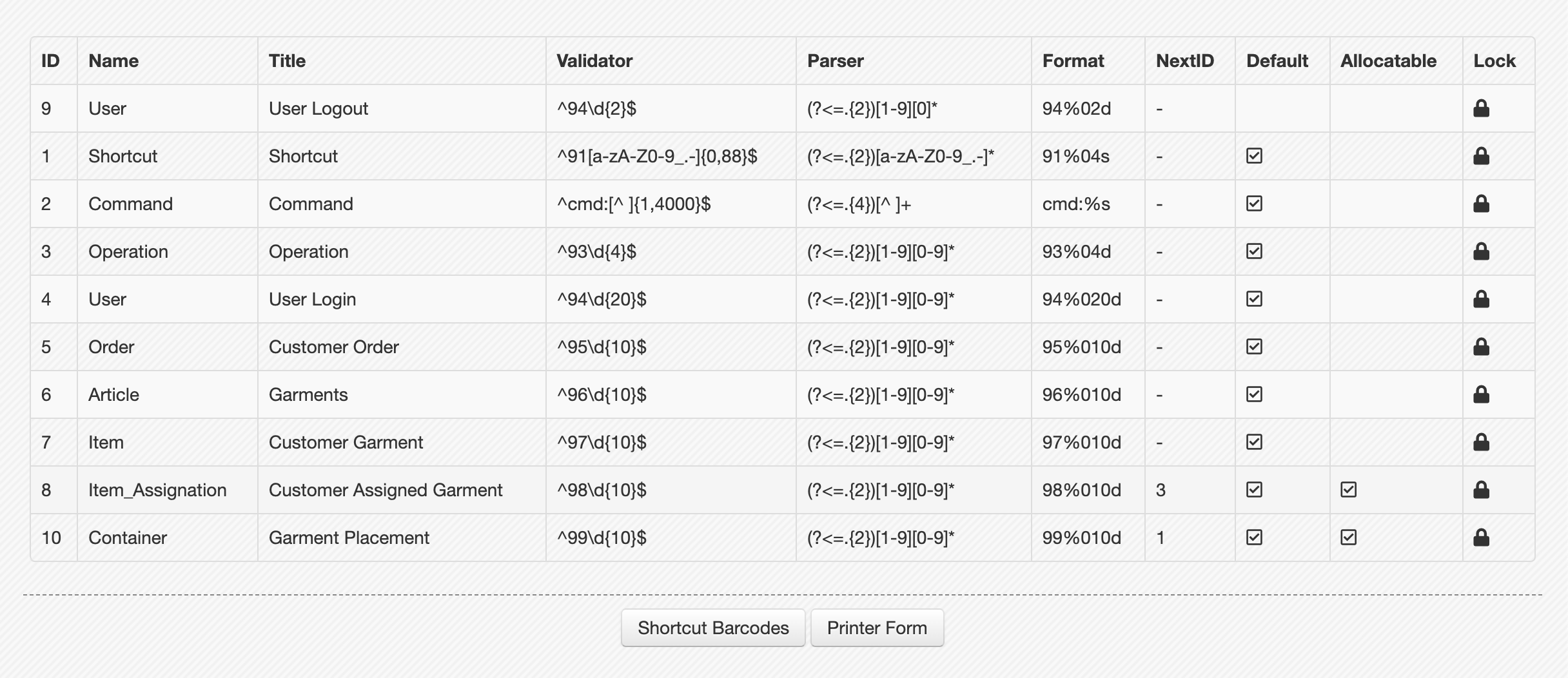
Page Overview
When you enter the page, you will see a table listing supported barcode types such as: Shortcut, Command, Operation, User, Order, Item, Container, etc.
This table is mainly for technical reference and can be ignored in daily usage.
Below the table, there are two main sections:
- Printer Form
- Shortcut Barcodes
Printing Barcodes
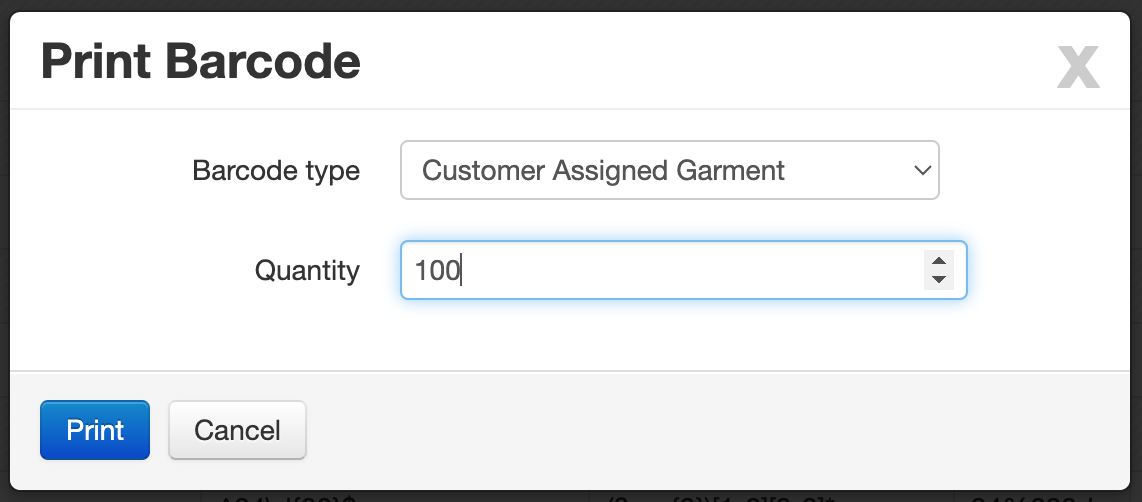
Click on Printer Form to open the printing interface.
The form includes:
- Barcode Type: Select the type of barcode (e.g., Item Assignation or Container)
- Quantity: Number of barcodes to print
To proceed with printing, click: Print
Item Assignation barcodes are pre-printed barcodes starting with prefix 98.
You can read more about them in the Assignation page.
Shortcut Barcodes
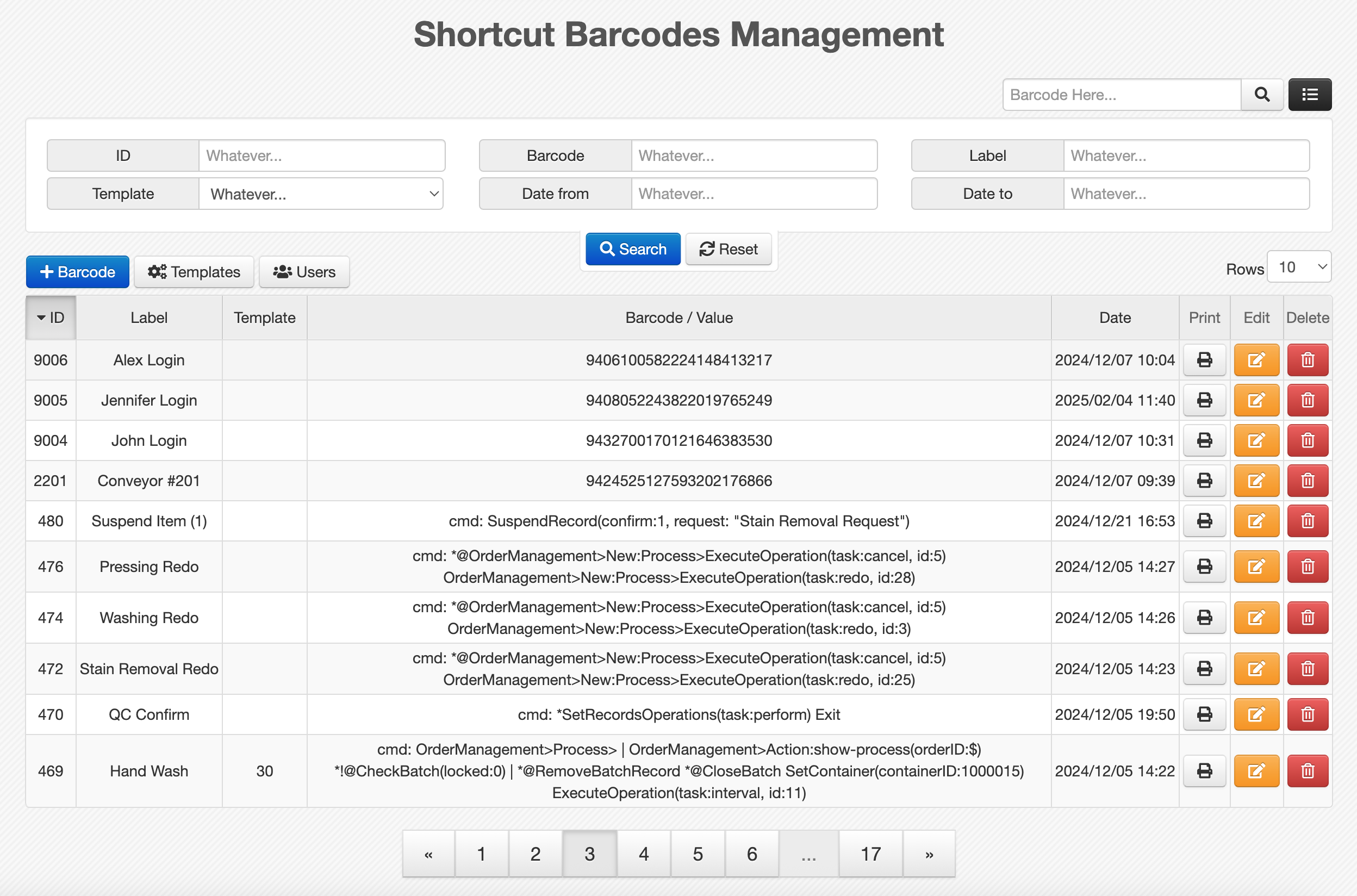
This section is used to manage shortcut barcodes.
Like other report pages in Caramel, it consists of:
Filters
A filter box is available to help you search and narrow down results.
- Reset Clears all filters
- Search Applies selected filters
Results Table
The results are displayed in a table.
- Clicking on column headers allows sorting (ascending/descending)
- Each row includes action buttons:
- Edit
- Delete
Creating a New Shortcut Barcode
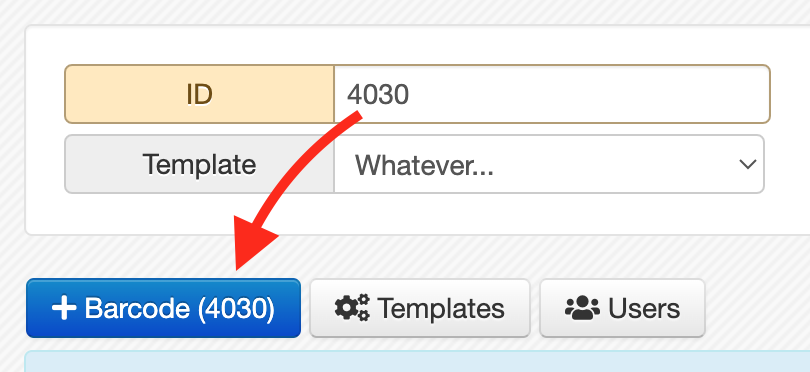
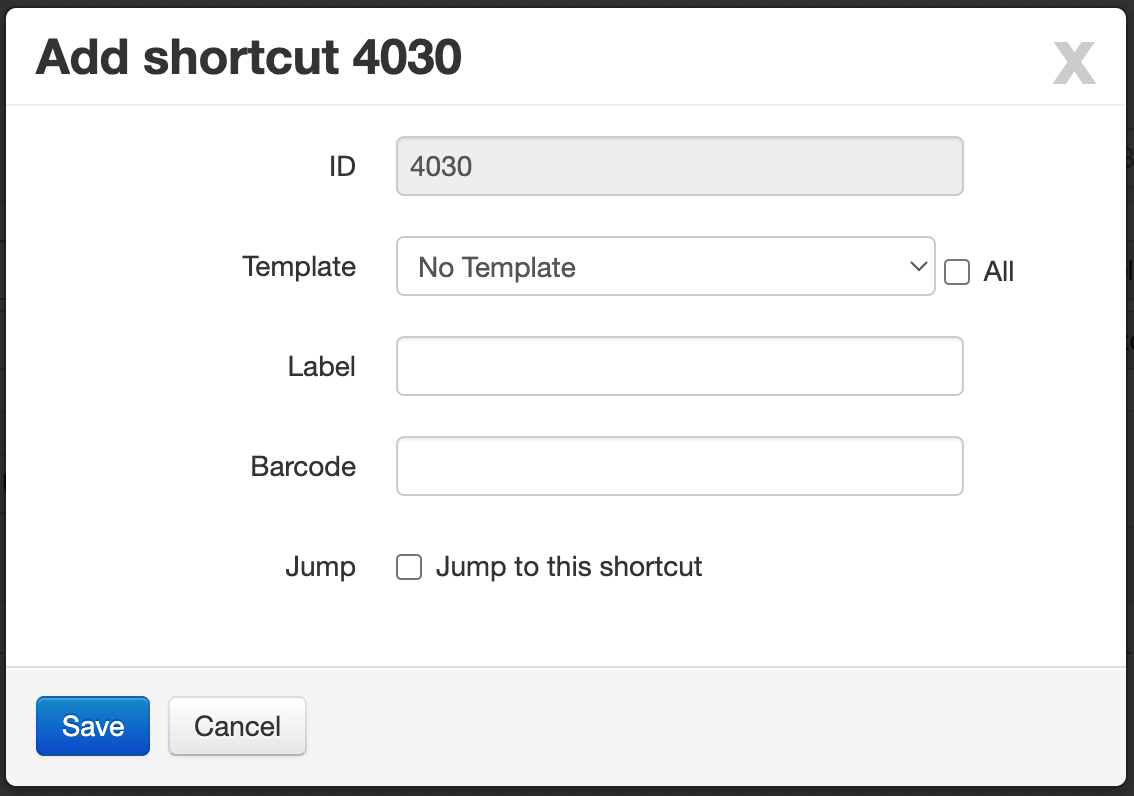
To add a new shortcut barcode, click: Barcode
To set a shortcut ID, first enter the ID in the search filters, then click: Barcode
The form includes:
-
Template: Select a predefined template
- Based on your selection, additional fields will appear
- For example, choosing a container template adds a container ID field
-
Label: A name for the barcode
-
Barcode:
- A command or numeric code defined by the support team
- If a template is selected, this field is automatically generated
-
Jump to this shortcut:
- If enabled, the system will redirect to this shortcut after saving
Additional Tools
- Templates View and learn about available templates
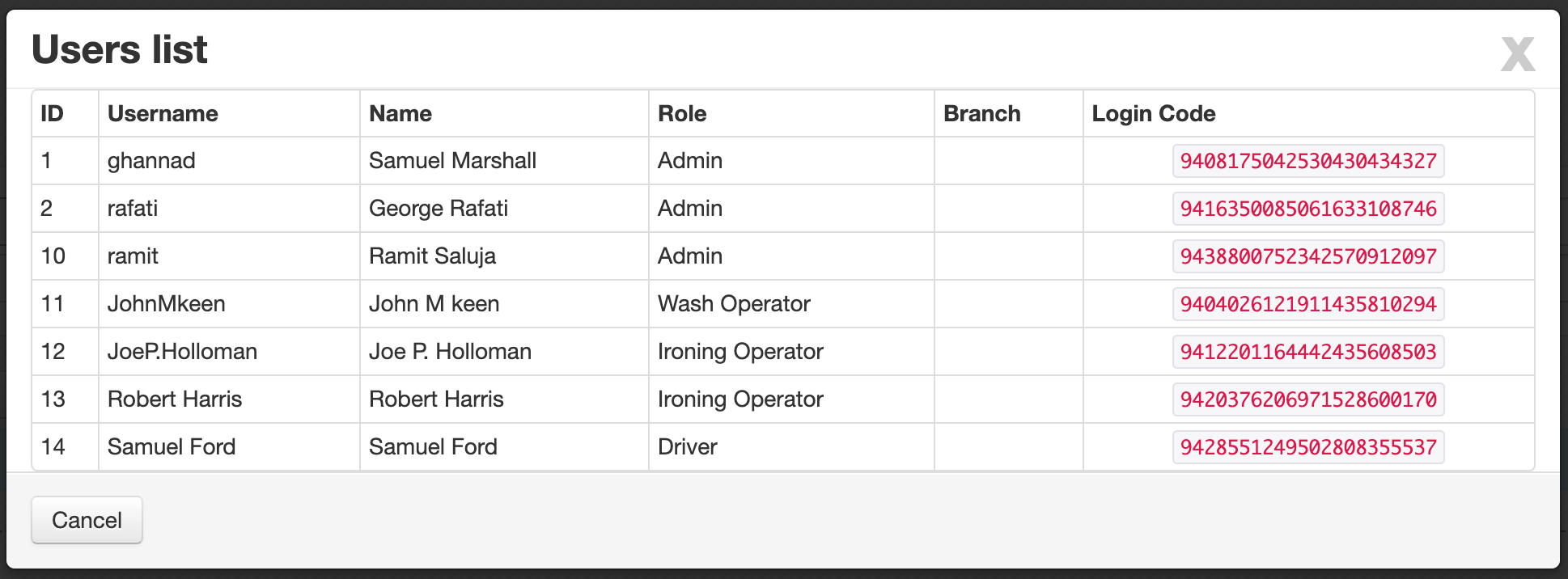
- Users View users and their login codes
Barcode Structure (Shortcuts)
Shortcut barcodes use a specific structure:
- All shortcut barcodes start with prefix 91
- The remaining digits represent IDs defined by the support team
Common patterns:
- 4xxx: User-related actions
- 5xxx: Workflow commands
Important Notes
This page should only be configured by the support team.
Incorrect changes may affect system behavior.
The explanations above are provided for general understanding only.