Users
Users is one of the initial setup pages in Caramel. On this page, you define the people who can use the software, assign their login details, and connect each user to a specific Role.
Pro EnterpriseThis page is available in Pro and Enterprise editions. In other editions, access is limited and only a small number of users are usually added once through coordination with the Caramel support team.
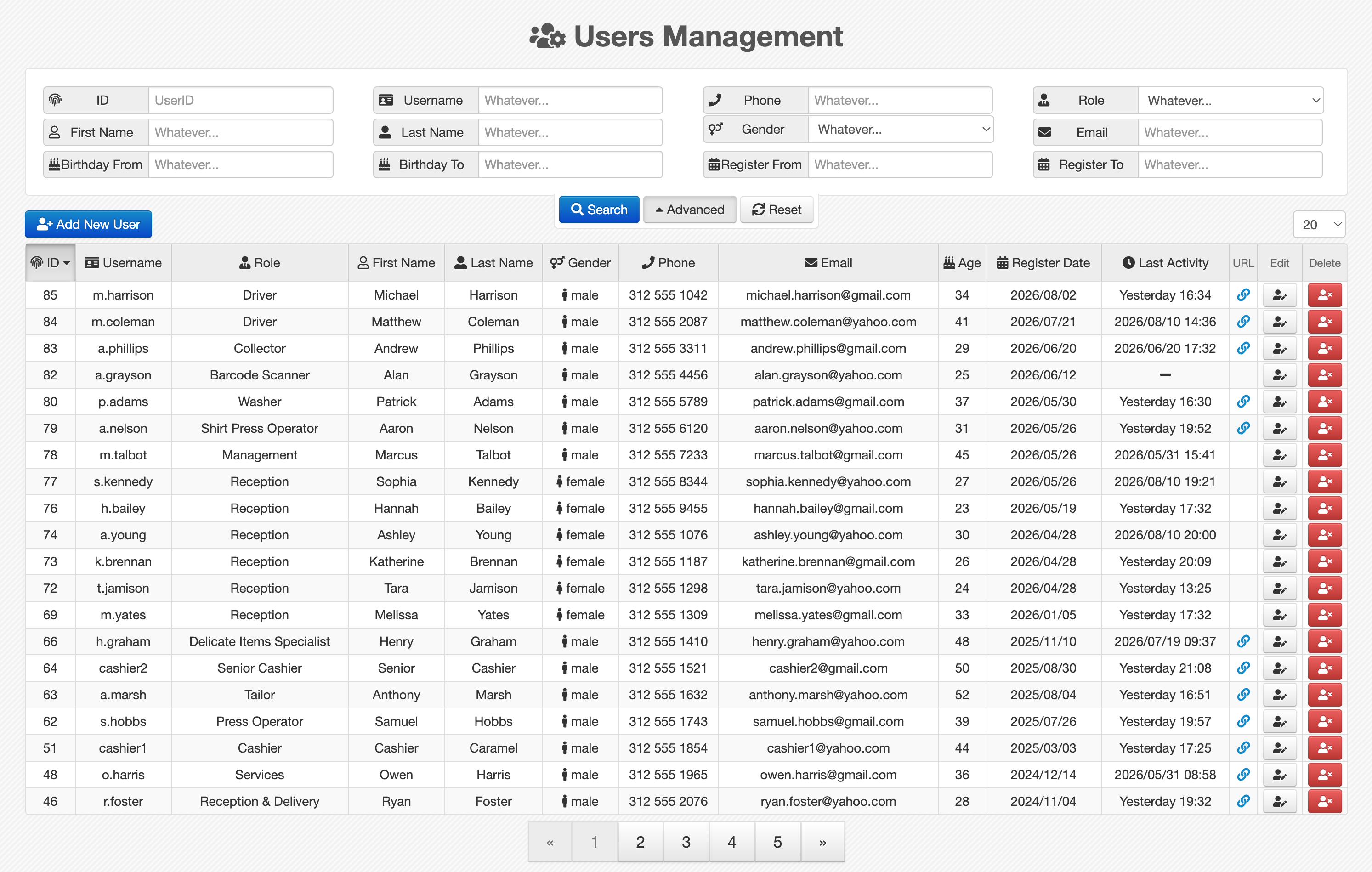
Page layout
Like most report-based pages in Caramel, the Users page is divided into two main sections:
- A filter box for searching
- A results table for viewing users
This structure helps you quickly find existing users, review their details, and manage access when needed.
Filters
At the top of the page, you can use the filter box to search for specific users. Each filter has its own label, so you can apply the filters you need and narrow down the results.
Click Advanced to expand the filter area and display more search options.
To clear all applied filters at once, use the reset button.
Results table
Below the filters, the results table shows the list of users.
The table header contains the defined user fields. You can click each column header to sort the table based on that column. Clicking again changes the sort order between ascending and descending.
At the end of each row, two action buttons are available:
- for editing the user
- for deleting the user
Add a new user
To create a new user, click Add New User
A form opens with the user information fields.
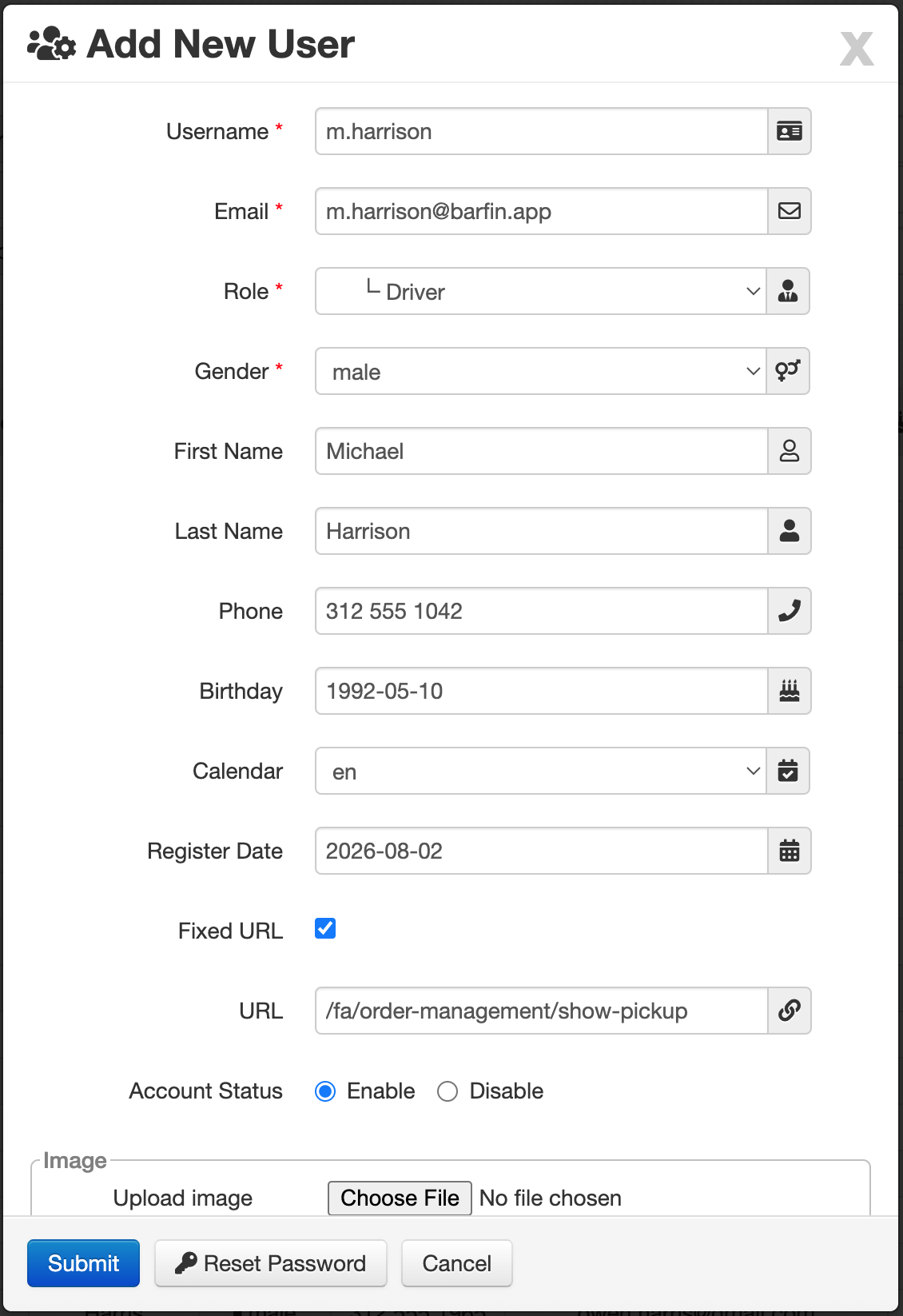
User form fields
The form includes the following fields:
- Username *: Unique username for login. This value cannot be repeated.
- Email *: User email address.
- Role *: Defines the user's access level and permissions. See Roles.
- Gender *: User gender.
- First Name: User first name.
- Last Name: User last name.
- Phone: Contact number.
- Birthday: User date of birth.
- Calendar: Related calendar setting for the user.
- Register Date: The user's registration date.
- Fixed URL: A fixed page or route that opens for the user after login.
- Account Status: Enables or disables the user account.
- Image: User profile image.
marked with a red asterisk * are required.
Fixed URL behavior
By default, after login, Caramel usually opens the last page that the user visited.
If Fixed URL is filled in, that address becomes the user's permanent landing page after login, regardless of the last visited page.
This is useful when you want a user to always enter the system from a specific section, such as a dashboard, order page, or a management screen.
Editing or disabling users
If a user already has records or activity in Caramel, that user usually cannot be deleted unless all related records are removed first.
Because of that, in most cases you should edit the user instead of deleting them, and change Account Status to Disable.
If a user has previous activity in the system, disabling the account is the recommended approach instead of deletion.
Birthday notification
If you fill in the Birthday field and the user's birthday is approaching, Caramel shows a notification in the users list.
This notification appears next to the Age column as a icon together with the number of days remaining until the birthday, for example +4.
This helps you notice upcoming birthdays directly from the users list.
Related pages
To complete user access setup, you may also want to review these pages: