Roles
Role settings are one of the core parts of Caramel setup. A role defines what a user can access across the system, from module-level permissions to individual pages and even specific operations. After roles are configured, creating a new user is much simpler because you only need to assign the appropriate role.
Page layout
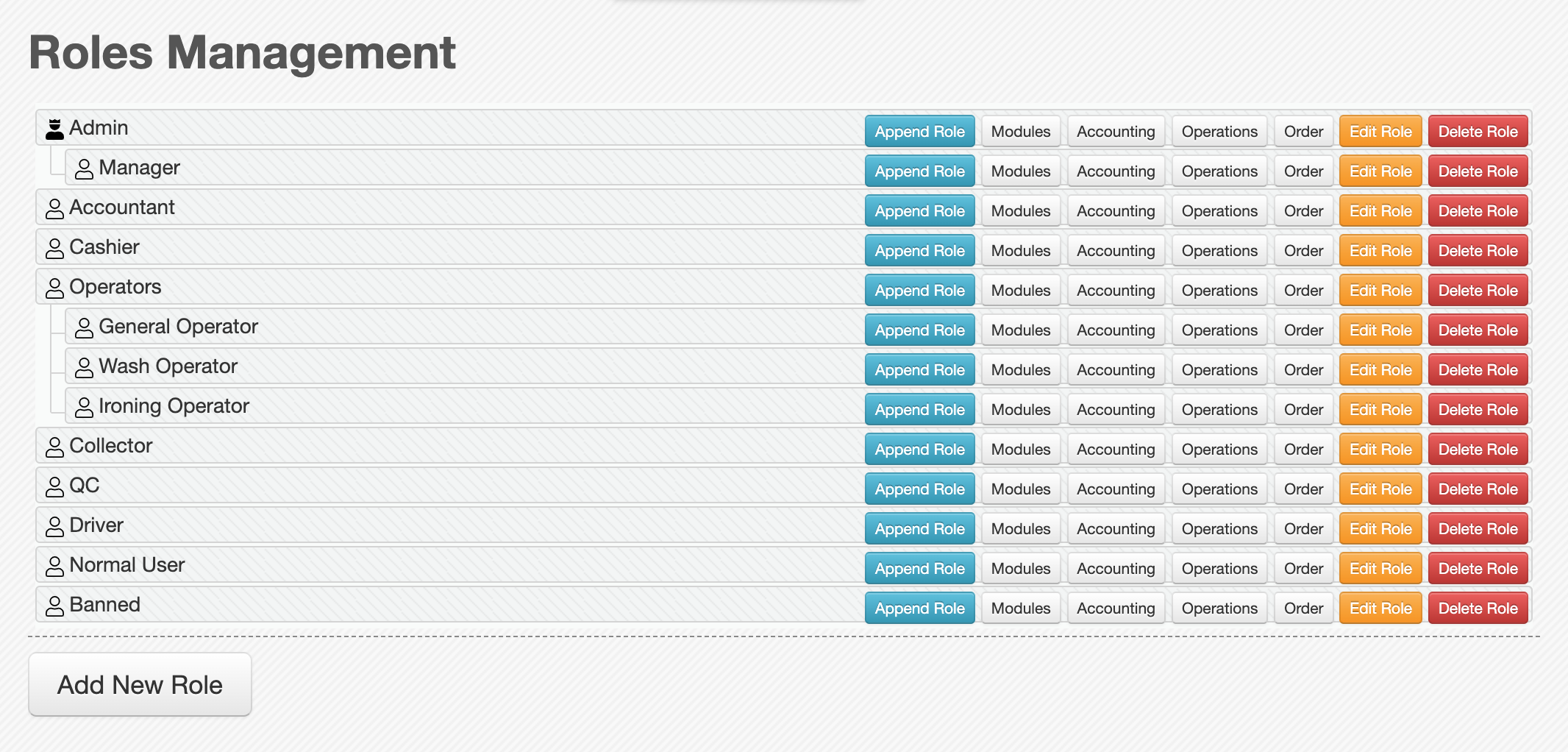
When you open the Roles page, you see a connected tree of rows called the sorting tree. Each row represents one role. Roles can be rearranged with drag and drop, and they can also be nested under other roles.
In each row, the role name appears on the left, and the action buttons appear on the right:
Append Role
Modules
Accounting
Operations
Orders
Edit Role
Delete Role
At the bottom of the tree, there is also an Add New Role button.
The Append Role button works like adding a new role, but it automatically selects the current role as the parent.
The Delete Role button only works when no users are currently assigned to that role in the Users page.
In most cases, roles are defined during the initial setup and do not need frequent changes.
Add or edit role form
The Add/Edit Role form is simple and includes the main role information.
- Role id: Automatically generated by the system. This field is read-only and is shown for reference only.
- Role parent: Selects the parent role. If left empty, the role is created as a top-level role. You can also change the hierarchy later by drag and drop.
- Role name: The name of the role.
- Admin: Marks the role as an administrator role. An admin role is treated as an exception and automatically has access to all permissions.
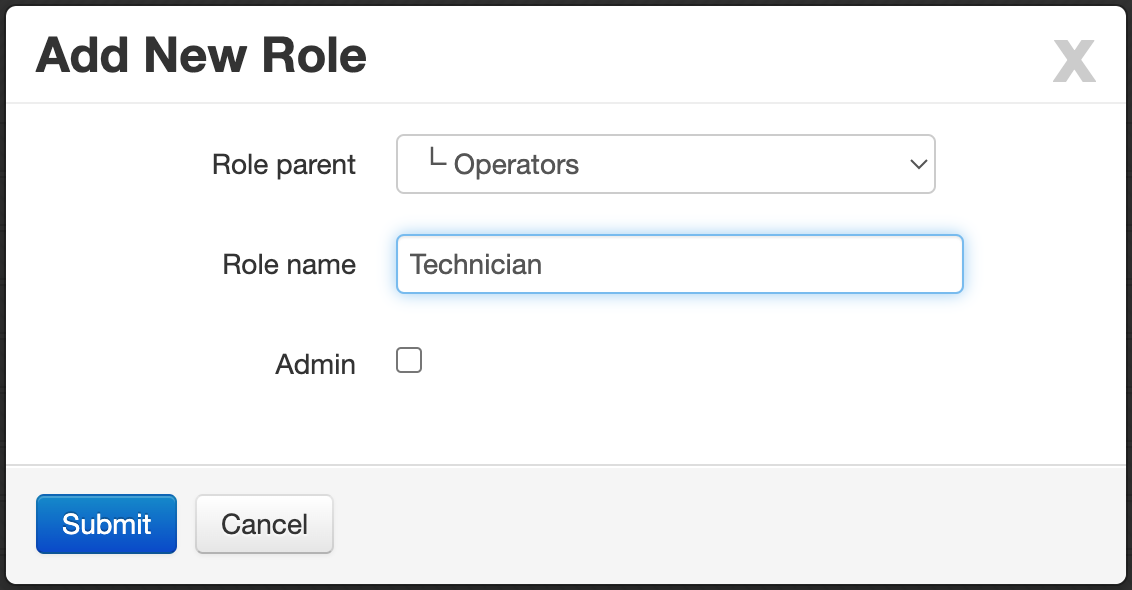
Enable the Admin option carefully. This setting gives the role full access across the system.
Permission sections
Role permissions are managed through four sections:
Modules
Accounting
Operations
Orders
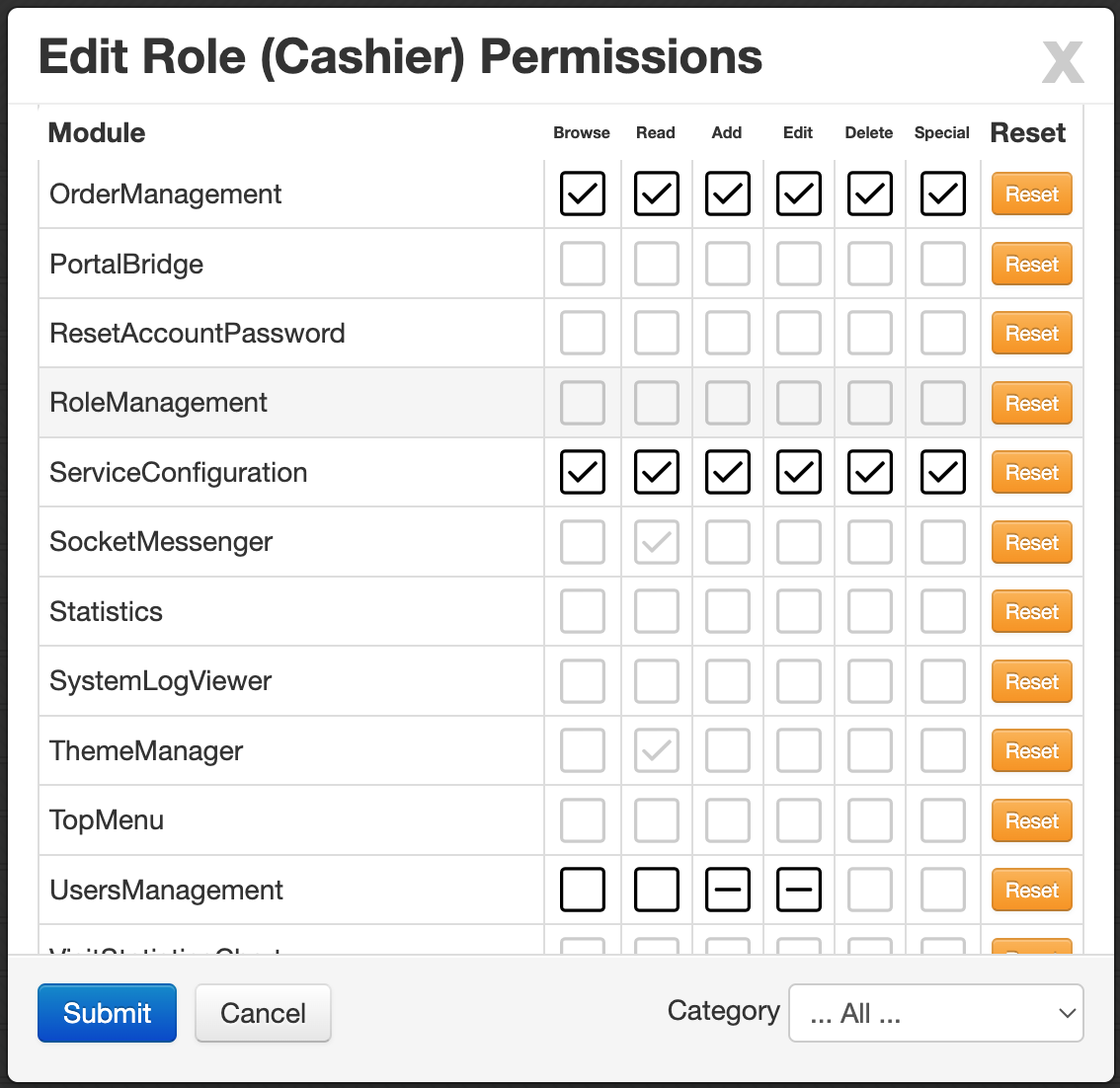
Each section opens a matrix table. In this table, rows represent permission subjects and columns represent permission levels.
The small square in each cell can have three states:
- Denied: the permission is not allowed.
- Allowed: the permission is granted.
- Own only: the permission is limited to the current user's own data or actions.
For example, an Edit permission with the Own only state can allow a user to edit invoices created by themselves, but not invoices created by other users.
Inherited and manual permissions
Permissions are inherited from parent roles by default, but each child role can override them when needed.
The square color helps you identify how the permission was set:
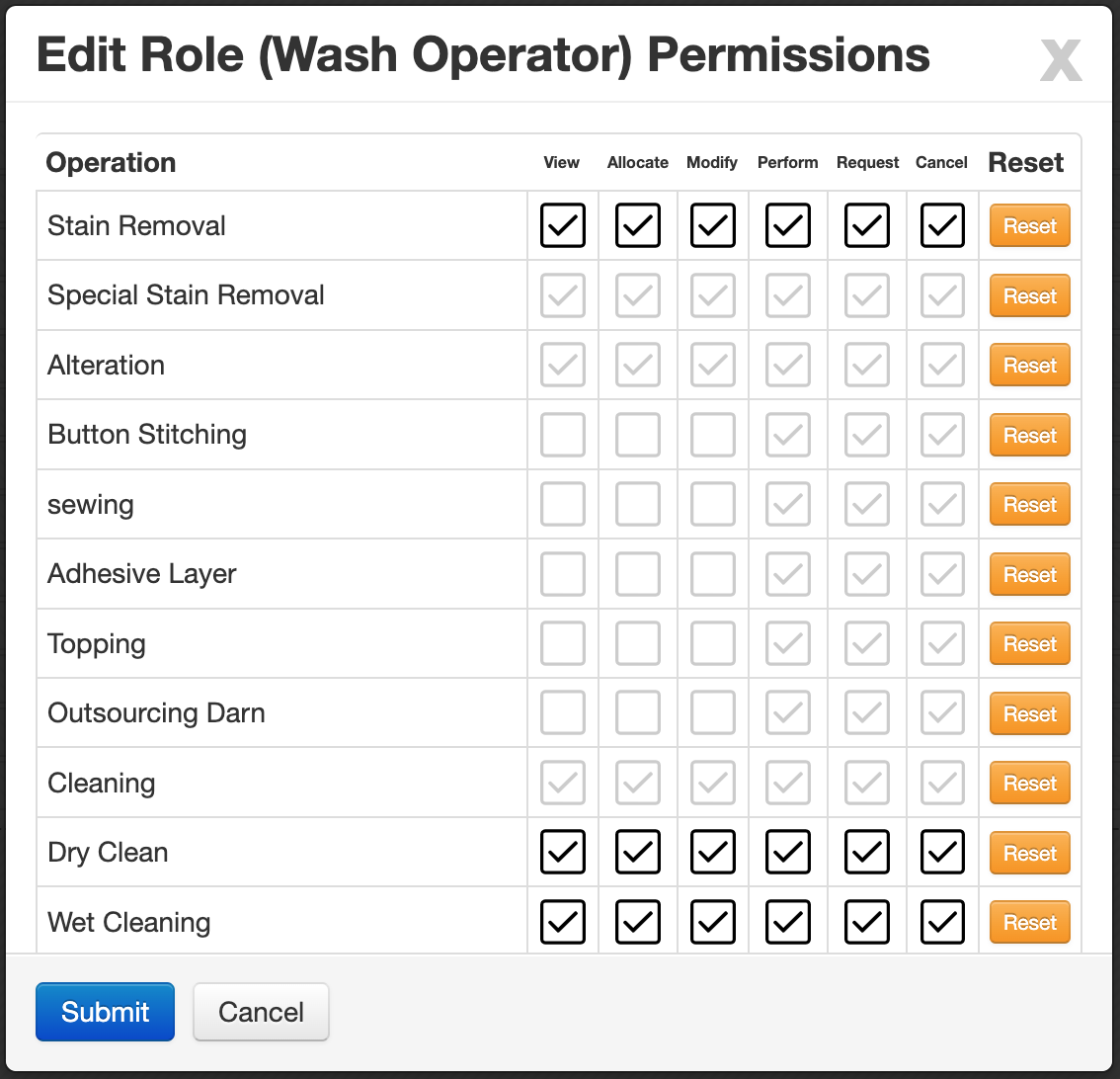
- Black square: the permission was manually changed for this role.
- Gray square: the permission is inherited from the parent role.
At the end of each row in the permission matrix, there is a Reset button. This clears the manual changes for that row and returns the permissions to the inherited parent values.
Use Reset when you want a role to follow its parent again instead of keeping custom permission changes.
Modules permissions
The Modules section controls access to system modules at a general level.
- Rows: system modules
- Columns: Browse, Read, Add, Edit, Delete, Special
This section is used to define broad access before moving into page-level or operation-level details.
Accounting permissions
The Accounting section controls access to pages inside the Accounting module.
- Rows: Accounting pages
- Columns: Browse, Read, Add, Edit, Delete, Special
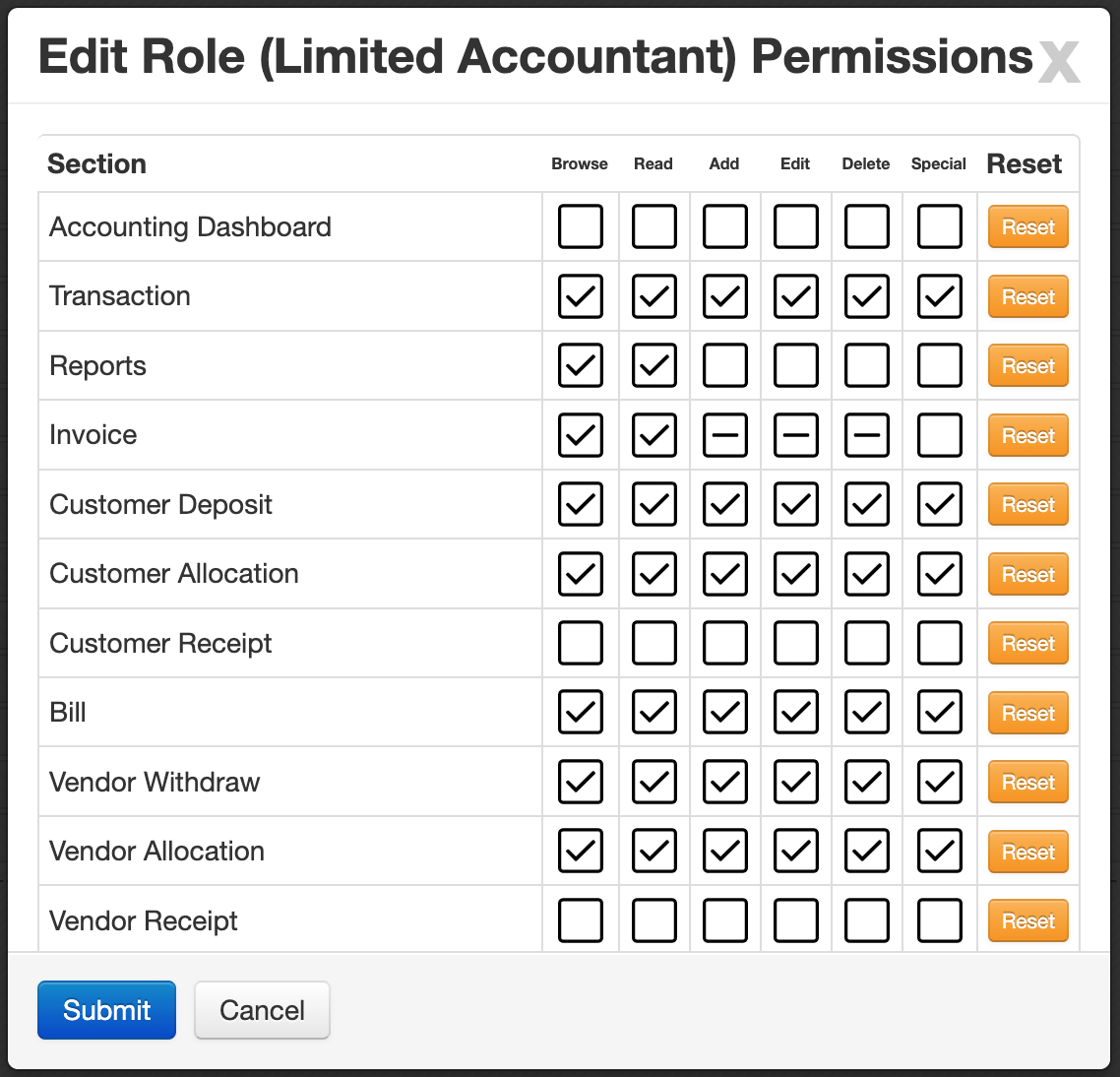
Use this section when users should have access to some accounting pages but not all of them.
Operations permissions
The Operations section controls access to defined operations in the Orders workflow.
- Rows: defined operations
- Columns: View, Allocate, Modify, Perform, Request, Cancel
This section is important when different roles are responsible for different stages of item processing.
Orders permissions
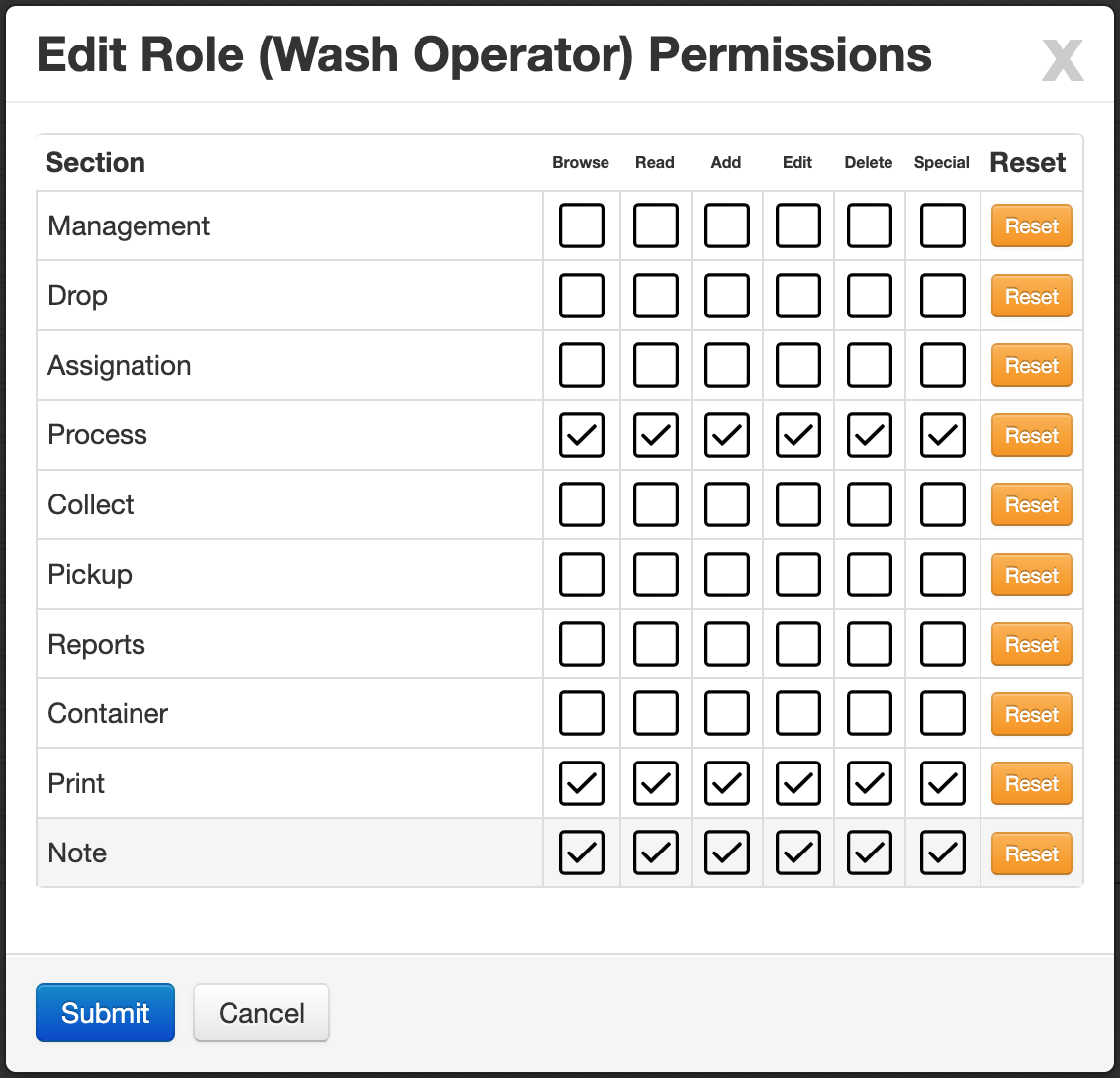
The Orders section controls access to pages inside the Orders module.
- Rows: Orders pages
- Columns: Browse, Read, Add, Edit, Delete, Special
This allows you to control which order-related pages each role can use and what actions are available on them.
Permission types explained
Browse vs Read
The difference between Browse and Read is important:
- Browse: Allows the initial view of a page, such as opening lists, loading tables, or using search.
- Read: Allows reading the actual data and details of records.
A user may be able to browse a list without having full permission to read all record details.
Special
The Special permission is used for actions that require more control than normal access levels.
Examples may include:
- viewing important reports
- accessing summary values such as Sum or Total
- viewing history in some pages
- performing final or sensitive actions in specific cases
Because this permission is used for exceptions and advanced actions, it should be granted carefully.
Recommended setup approach
Roles affect a large part of system behavior, so it is best to define them carefully during the initial setup. Since role structures usually stay stable for a long time, a correct first configuration helps avoid future access issues.
It is strongly recommended to configure roles together with the support team, especially during the initial setup. Incorrect permission settings can cause workflow problems or unexpected access limitations.
You usually define roles first, then assign them while creating or editing users.